> For the complete documentation index, see [llms.txt](https://docs.miltechsimulations.com/llms.txt). Markdown versions of documentation pages are available by appending `.md` to page URLs; this page is available as [Markdown](https://docs.miltechsimulations.com/stratoware-miltech-simulations-bo105/product-guides/hardware-configuration.md).
# Hardware Configuration
Configure your joystick or controller for optimal flying.
## Primary Flight Controls Configuration
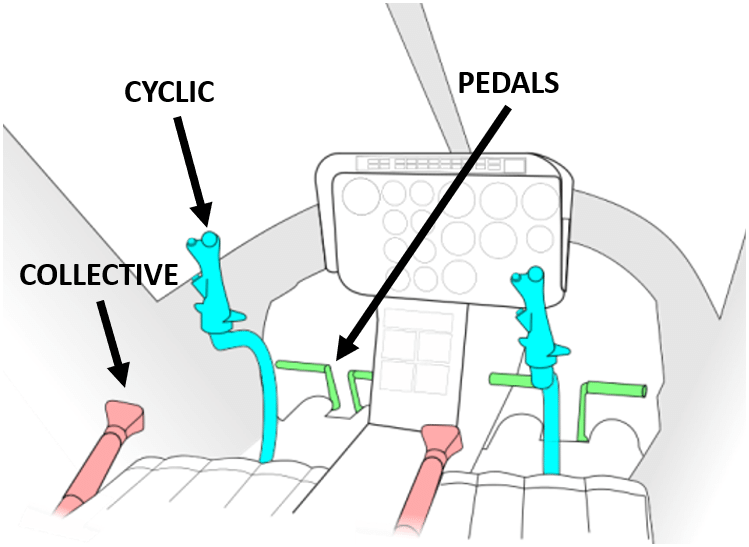
If you are not familiar with helicopters, this guide should help you understand the basic controls that make them fly, and help you configure the controls correctly.
### **The Cyclic**
This stick sits between your legs. Moving it forward or back controls the helicopter's pitch (nose up or down). Moving it side-to-side controls the helicopter's roll (leaning left or right).
* **Pitch Binding:** `ELEVATOR AXIS` or `CYCLIC LONGITUDINAL AXIS`
* **Roll Binding:** `AILERONS AXIS` or `CYCLIC LATERAL AXIS`
* Both Pitch and Roll can be trimmed, making flight more comfortable for the user:
* **Cyclic Pitch Trim Binding:** `INCREASE ROTOR LONGITUDINAL TRIM` and `DECREASE ROTOR LONGITUDINAL TRIM`
* **Cyclic Roll Trim Binding:** `INCREASE ROTOR LATERAL TRIM` and `DECREASE ROTOR LATERAL TRIM`
### **The Collective & Throttle**
This lever is on your left side. Raising the collective increases the pitch of all rotor blades at once, generating more lift and making the helicopter rise. Lowering it causes the helicopter to descend.
* **Collective Binding:** `THROTTLE AXIS` or `COLLECTIVE AXIS`
* **Is there Throttle Control?:** While the Bo 105 does have manual throttle control, assigning this to your hardware will likely interfere with the governor (device that automatically maintains a constant rotor speed (RPM) in a helicopter). This is key for simulating dual engine functionality. \
\
**Therefore, please ****DO NOT USE** **`HELICOPTER THROTTLE AXIS` .**
### **Tail Rotor Pedals**
These are on the floor at your feet. Pushing the pedals lets you turn the helicopter nose left or right.
* **Tail Rotor Pedals Binding:** `RUDDER AXIS` or `TAIL ROTOR AXIS`
Generalised Helicopter Controls
* **Rotor Brake:** this must be correctly configured, as it may interfere with background functions. Find `ROTOR BRAKE` in your controls options,
* Configure keybind for Press+Hold (input repetition must be enabled) activation.
* Alternatively, you may use `TOGGLE ROTOR BRAKE` to lock it into position (ON/OFF without requiring input repetition).
## Control Sensitivity Configuration
The Bo 105 is designed to be extremely maneuverable, and as a result, the controls are extremely sensitive to small inputs and require deliberate and thoughtful control. In certain situations, constant rudder pedal input may be required to prevent the aircraft from entering a spin.
We reccommend adjusting the sensitivity of your yaw axis according to your personal preference. If you're struggling to find a balance that works for you, please drop us a message: [Contact Us](/stratoware-miltech-simulations-bo105/product-information/contact-us.md).
Additionally, Xbox controller users may benefit from dampened sensibility in the cyclic axis for more precise control in hover.
## Control Assistances
If you're struggling to control the Bo 105, we reccommend turning on helicopter assistances. Follow these steps:
1. Open settings
2. Select the assistances menu
3. Turn on the four helicopter related assistances:
1. `Helicopters: Assisted Cyclic`
2. `Helicopters: Assisted Tail Rotor`
3. `Helicopters: Assisted Collective`
4. `Helicopters: Vortex Ring State Protection`
## Keybinds, LVARs and HEvents
The Keybind Guide is frequently updated, please refer to: [Keybinds Guide](/stratoware-miltech-simulations-bo105/product-guides/keybinds-guide.md)
---
# Agent Instructions
This documentation is published with GitBook. GitBook is the documentation platform designed so that both humans and AI agents can read, navigate, and reason over technical content effectively. Learn more at gitbook.com.
## Querying This Documentation
If you need additional information that is not directly available in this page, you can query the documentation by asking a question.
Perform an HTTP GET request on the following URL with the `ask` and `goal` query parameters:
```
GET https://docs.miltechsimulations.com/stratoware-miltech-simulations-bo105/product-guides/hardware-configuration.md?ask=&goal=
```
`ask` is the immediate question: it should be specific, self-contained, and written in natural language.
`goal` is what the user is ultimately trying to achieve, the reason they need the answer. Sharing it helps GitBook give you a better, more relevant answer. A goal is most helpful when it describes the outcome the user wants rather than restating the question. For example, with `ask=how do I create an API token`, a goal like `automate deployments from our CI pipeline` lets GitBook tailor the answer to that use case.
The response will contain a direct answer to the question and relevant excerpts and sources from the documentation.
Use this mechanism when the answer is not explicitly present in the current page, you need clarification or additional context, or you want to retrieve related documentation sections.