> For the complete documentation index, see [llms.txt](https://docs.miltechsimulations.com/llms.txt). Markdown versions of documentation pages are available by appending `.md` to page URLs; this page is available as [Markdown](https://docs.miltechsimulations.com/miltech-mission-hub/developer-sdk/mission-package.md).
# Mission Package
To distribute multiple missions together you can create a mission package.
## Creating the mission package
{% tabs %}
{% tab title="Work folder (easy)" %}
You need to create a folder for your mission package in `\work\MissionPacks\` . Inside that folder, put all your mission .json files, thumbnails, briefing images, and other assets (Sounds, Scripts, Images, Weather).
In your mission package folder, create a new file called `MissionPackDefinition.json` and fill in the fields:
```json
{
"GUID": "YOUR-GENERATED-GUID",
"Title": "Your Missionpack Title",
"Description": "Your Missionpack Description",
"Author": "YourName",
"Thumbnail": "YourMissionPack-thumbnail.jpg",
"Files": [
{
"FileName": "1MissionName.json",
"Thumbnail": "1MissionName_thumbnail.jpg",
"BriefingImage": "1MissionName_briefing.jpg"
},
{
"FileName": "2MissionName.json",
"Thumbnail": "2MissionName_thumbnail.jpg",
"BriefingImage": "2MissionName_briefing.jpg"
}
]
}
```
{% hint style="warning" %}
Generate a random GUID for your mission pack. You can use
{% endhint %}
{% endtab %}
{% tab title="Community folder (harder)" %}
You can distribute your mission package as package that can be placed in the community folder. The user then has to manually add the pack to the mission hub. The community folder method is also more complex. Therefore, it's recommended to use the work folder to distribute mission packages.
## Template project
This zip contains an example Devmode project:
{% file src="/files/VNjGi6gQ8dYptqnbgy4o" %}
Download and extract the .zip file. Open the project in MSFS devmode.
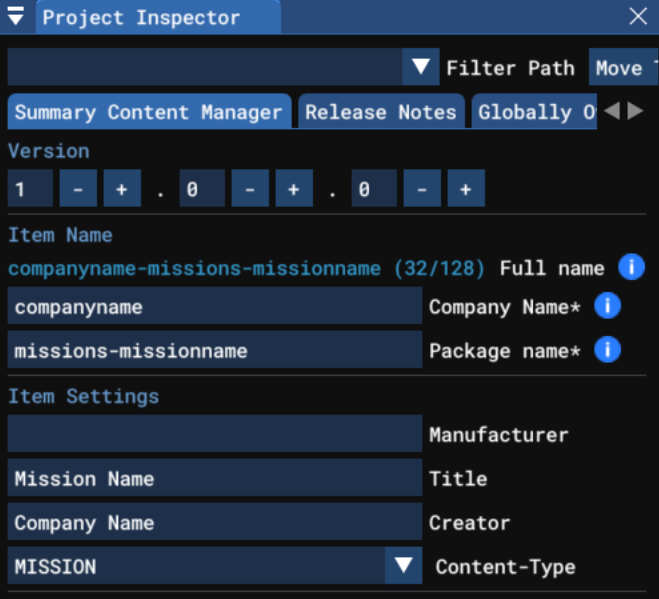
Once opened, you need to change the *Package nam*e and other details in the project inspector.
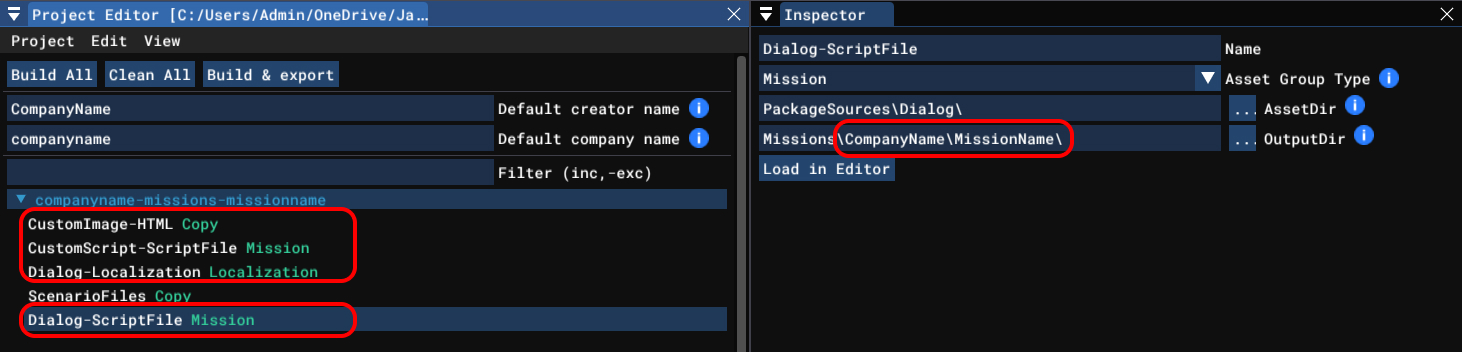
And you need to change the *OutputDirs* for the all asset groups **except for the ScenarioFiles asset group**.
Replace `CompanyName` with your name and `MissionName` with the name of the mission.
{% hint style="warning" %}
Be sure to change the package and folder names, to avoid conflicts with other missions.
{% endhint %}
### Defining your mission pack details
#### Preparing ScenarioFiles asset group
In the MSFS project editor, edit the **OutputDir** of the *ScenarioFiles* asset group. The last part of the OutputDir should exactly match your package name:
#### Adding missions
Paste your mission files, thumbnail images, and briefing images in the `PackageSources\ScenarioFiles\` folder (See: [Sharing and Installing Missions](/miltech-mission-hub/guides/sharing-and-installing-missions.md)).
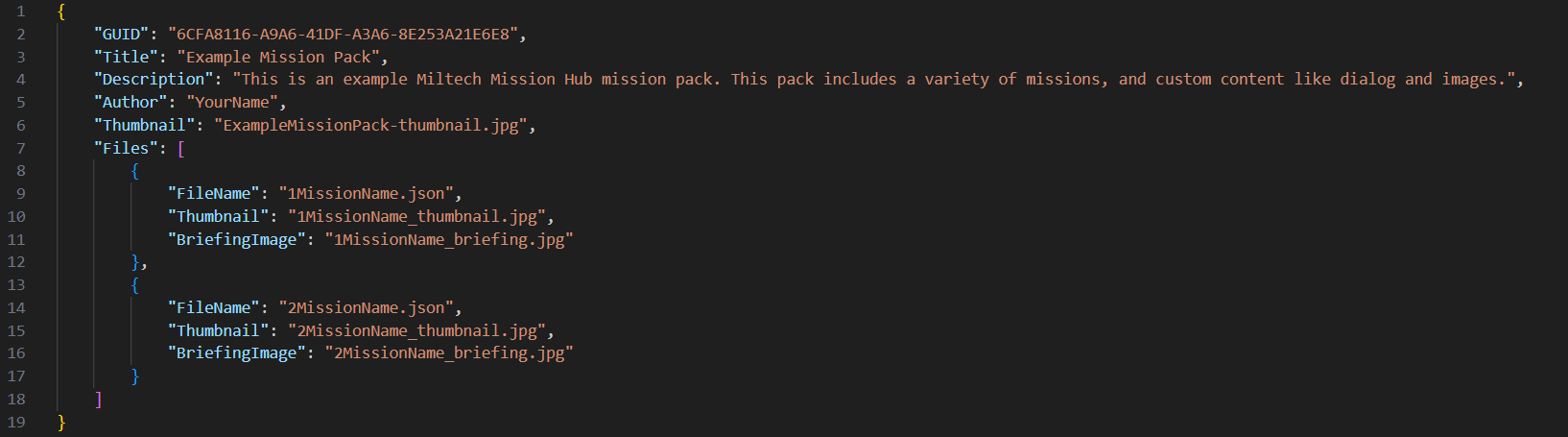
In that folder, open the `MissionPackDefinition.json` file:
Edit all the fields with your own information. You can add more files if needed.
You can add multiple briefing images if you want, like this:
{% code overflow="wrap" %}
```
"BriefingImage": ["1MissionName_briefing1.jpg", "1MissionName_briefing2.jpg", "1MissionName_briefing3.jpg"]
```
{% endcode %}
{% hint style="warning" %}
Generate a random GUID for your mission pack. You can use
{% endhint %}
## Adding custom content
### Custom Dialog
Follow the steps in [Custom Dialog](/miltech-mission-hub/developer-sdk/advanced-map-objects/custom-dialog.md).
### Custom Image
Add the custom image(s) to the `PackageSources\CustomImage\` folder. In the [Custom Image](/miltech-mission-hub/developer-sdk/advanced-map-objects/custom-image.md) *Image Path*, you can specify the image like: `CompanyName/MissionName/ImageName.jpg`
### Custom Script
Add the custom script(s) to the `PackageSources\CustomScript\` folder. In the [Custom Script](/miltech-mission-hub/developer-sdk/advanced-map-objects/custom-script.md) *Script Path*, you can specify the script like: `Missions\CompanyName\MissionName\CustomScriptName`
{% endtab %}
{% endtabs %}
---
# Agent Instructions
This documentation is published with GitBook. GitBook is the documentation platform designed so that both humans and AI agents can read, navigate, and reason over technical content effectively. Learn more at gitbook.com.
## Querying This Documentation
If you need additional information that is not directly available in this page, you can query the documentation by asking a question.
Perform an HTTP GET request on the following URL with the `ask` and `goal` query parameters:
```
GET https://docs.miltechsimulations.com/miltech-mission-hub/developer-sdk/mission-package.md?ask=&goal=
```
`ask` is the immediate question: it should be specific, self-contained, and written in natural language.
`goal` is what the user is ultimately trying to achieve, the reason they need the answer. Sharing it helps GitBook give you a better, more relevant answer. A goal is most helpful when it describes the outcome the user wants rather than restating the question. For example, with `ask=how do I create an API token`, a goal like `automate deployments from our CI pipeline` lets GitBook tailor the answer to that use case.
The response will contain a direct answer to the question and relevant excerpts and sources from the documentation.
Use this mechanism when the answer is not explicitly present in the current page, you need clarification or additional context, or you want to retrieve related documentation sections.