DOCUMENTATION
Backup Control Display Unit (BCDU)
The Backup Control Display Unit (BCDU) is the small green-screen computer with the alphabet keypad. In our rendition of the U-2S it is exactly what its name says - the backup. While the AVP is running, the BCDU only shows the RT page, a read-out of navigation data, and its keys do nothing.
Its menu pages - INS alignment, destination points, steering, radios and transponder - work in backup control, that is while the AVP is off, still starting, or failed. Pages are reached through the five positions of the menu knob and the function keys.
Using the BCDU pages
Switch the AVP off to get the menu pages - or use the BCDU before you switch the AVP on, or while it is still starting. That is how you type the INS alignment position by hand. With the AVP off the MFDs show DISPLAY BUS OR AVP FAILURE and the UFCD shows NO COM (switch the UFCD off and on again once the AVP is back).
As soon as the AVP is up again the BCDU returns to the RT page, and an entry you have not finished is lost.
Layout
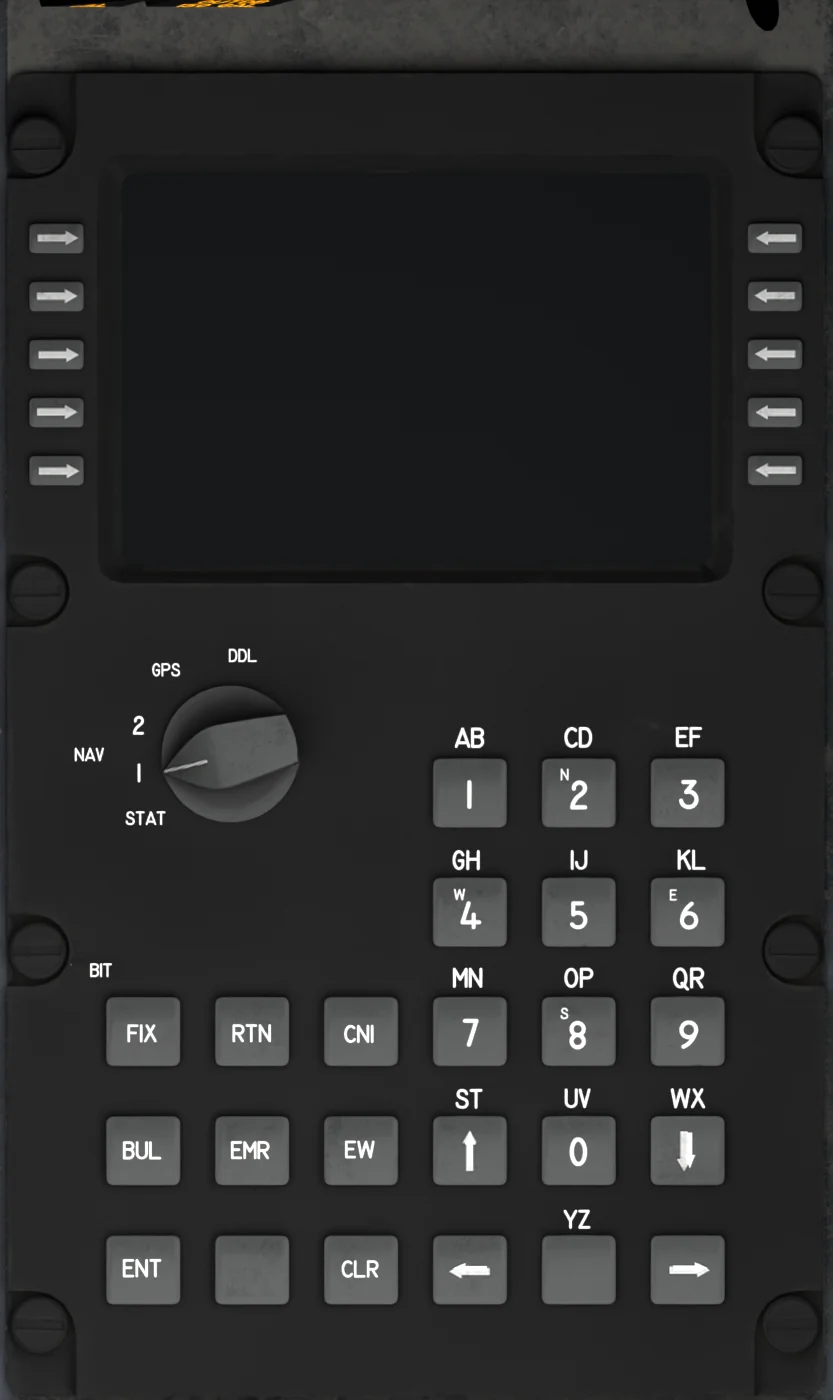
- Screen: 10 lines of 24 characters. The bottom line is the scratch pad - it shows the page title in brackets, or what you are typing, or a message. Its first five characters are the advisory letters (see Advisory Letters below).
- Right Line Select Keys (R1-R5)
- Left Line Select Keys (L1-L5)
- Menu Knob: Five positions - STAT, NAV 1, NAV 2, GPS, DDL. Turning it always takes you to the top page for that position (only while the AVP is off).
- BIT Light: Built-in-test indicator (decorative in the simulator).
- Keypad: Each key carries two letters and a digit. The small letters in the corners are the hemispheres: 2 N, 8 S, 4 W, 6 E.
- ST / WX Keys: Double as the up / down arrows (scrolling), and type S/T and W/X in a letter field.
- FIX, RTN, CNI function keys.
- ENT: Accepts an entry or action.
- CLR: Clears a message, resets an entry, or cancels.
- YZ Key
- Left / Right Arrows: Move the cursor during an entry; adjust the brightness when nothing is being typed.
Go by the key legends, not the mouse tooltips
Some mouse-over tooltips on the BCDU keys show labels from a different unit and do not match. Use the legend printed on the key and the positions described here.
Power-Up
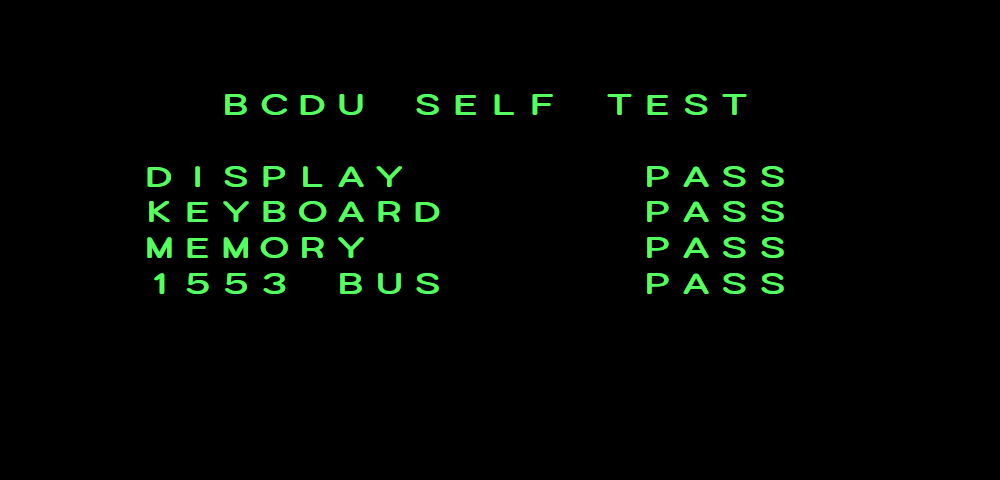
Switch BCDU ON (right console). The screen runs a 5-second display test (full raster, grid, character set, numerals, self-test summary) and then counts down INITIALIZING: 9 ... 1. Keys are ignored until it finishes - about 15 seconds in total. It then shows the RT page if the AVP is running, otherwise the page for the menu knob position. With no keys being typed, ← and → adjust the screen brightness.
Example BCDU selftest
Example BCDU powerup

RT Page (AVP Running)
While the AVP runs the navigation bus, the BCDU is only a terminal on it and shows the RT page: present position, true airspeed and ground speed, time and distance to go, magnetic heading and track, INU temperature, wind, cross-track error, the orbit count while orbiting, the steering mode and DPs (for example FM/TO:03/04) and calibrated altitude.
The bottom line carries the advisory letters and GMT. Only ← and → (brightness) work; every other key, FIX and CNI included, and the menu knob are ignored until the AVP goes off.
Example BCDU rt
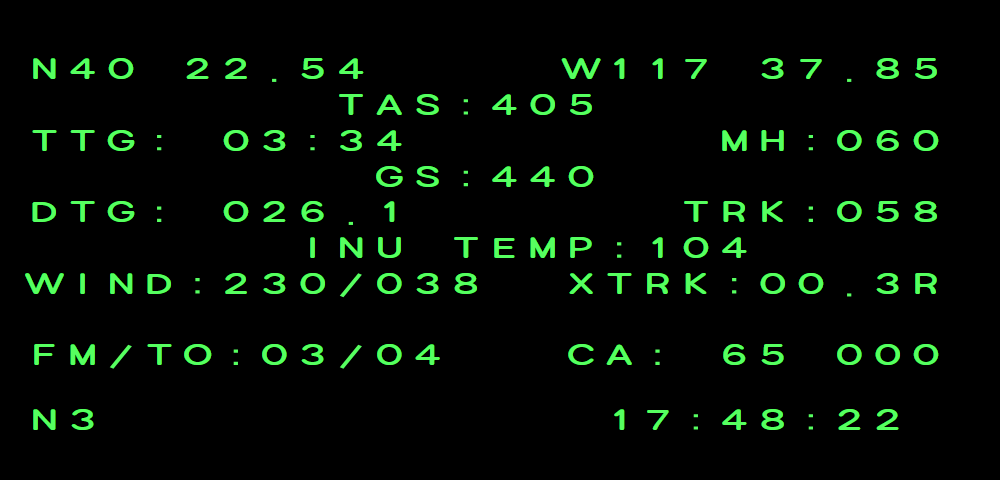
- Present position (latitude, longitude)
- True airspeed (GS below)
- Time to go
- Distance to go (NM)
- Cross-track error (R = right of course)
- Steering mode and DPs
- Calibrated altitude
- Advisory letters (GMT at the right)
Advisory Letters
The first five characters of the bottom line are single-letter advisories, each in a fixed position (blank while the INS is off):
| Position | Shows | Meaning |
|---|---|---|
| 1 | L / N | Limited / full navigation. While aligning it flashes: that level is ready to accept. In NAV it flashes 21 seconds before a turn point. |
| 2 | 1-7 | GPS navigation mode: 1-5 GPS in use (1 = best), 6 ground tracker, 7 no update. |
| 3 | E / A | E: the alignment position and the gravity deflection are not both entered yet. A: aligning or testing; flashing once a NAV level is ready. |
| 4 | O | Overfly selected or orbit adjust armed; flashing once the DP has been overflown. |
| 5 | U | Flashing: a datalink upload is waiting. |
During an in-flight alignment position 3 shows E for about the first two minutes, then A with a flashing L in position 1.
How to Read a Page
| You see | It means |
|---|---|
| <NAV INIT (arrow pointing out of the screen, at the key) | The key opens another page. |
| >SEL DP / STBY MODE< (arrow pointing into the screen) | The key edits that field or performs that action. One exception: IFF PANEL< on the Mode S page opens the IFF page. |
| No arrow | Display only. |
Entering Data
Example BCDU entry 1
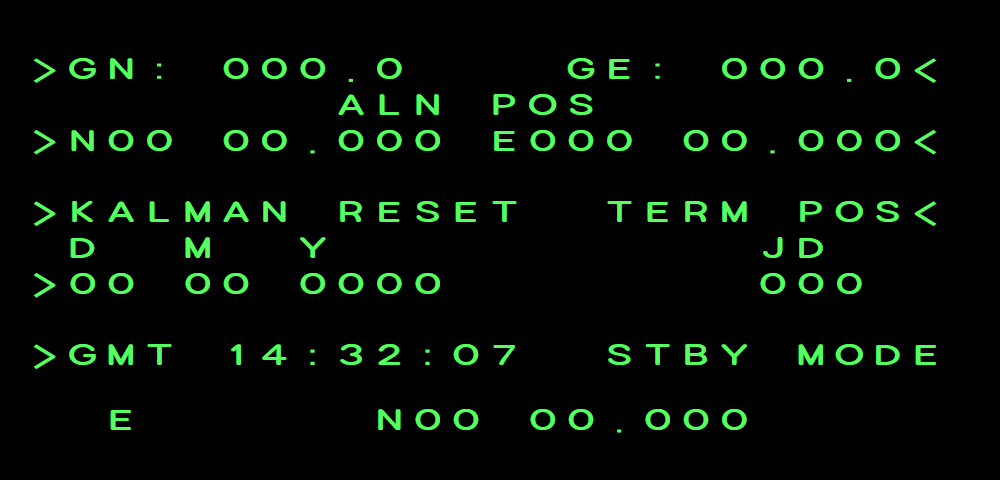
- Press the key beside the field. The arrow flashes and the current value appears in the scratchpad.
- Type over it. Digits move the cursor on automatically and jump over spaces and decimal points.
- Press ENT to accept.Nothing is ever changed until you press ENT. That is also true for actions: the scratchpad shows what is about to happen (e.g. ALN MODE) and waits for ENT.
- Hemispheres: 2 = N, 8 = S, 4 = W, 6 = E (think of a compass laid over the keypad).
- Letters: press a key once for its first letter, twice for its second and a third time for its digit. The cursor does not move on after a letter - press → before the next one. Name fields take letters and digits.
- CLR: clears a message; or resets what you have typed; or, pressed again, abandons the entry.
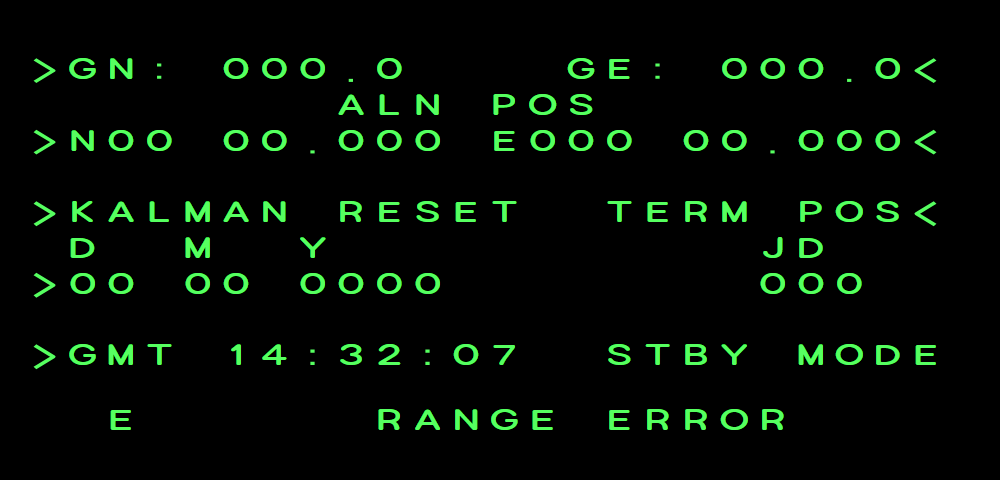
- RANGE ERROR flashing in the scratchpad means the value was not acceptable. Press CLR and try again.
- RTN returns to the top page of the current knob position.
- Several choices: some keys offer a list (for example STBY MODE< or >KALMAN RESET). The scratch pad shows the current choice with ↑↓; step with ↑ ↓ and press ENT for the one shown.
- Changing page - with the menu knob, RTN, a function key or a page key - abandons an entry you have not yet entered.
Example BCDU rangeerror
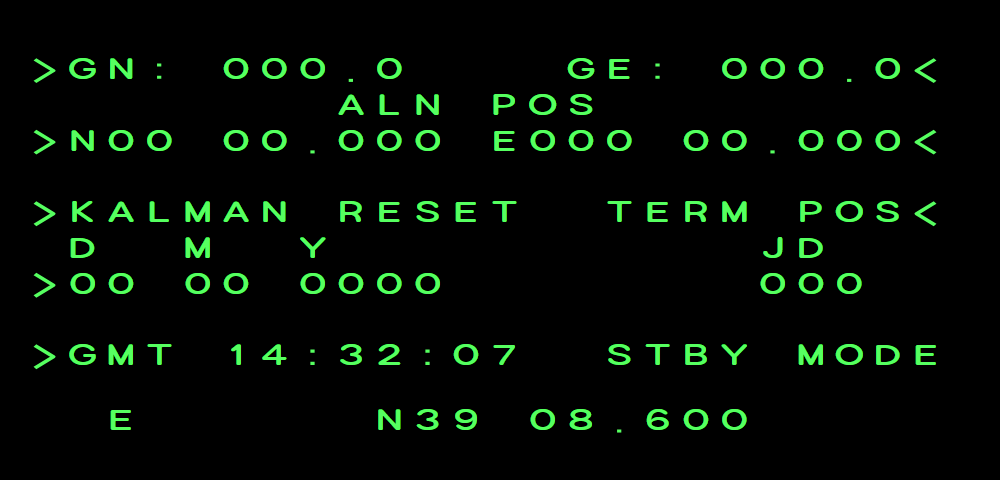
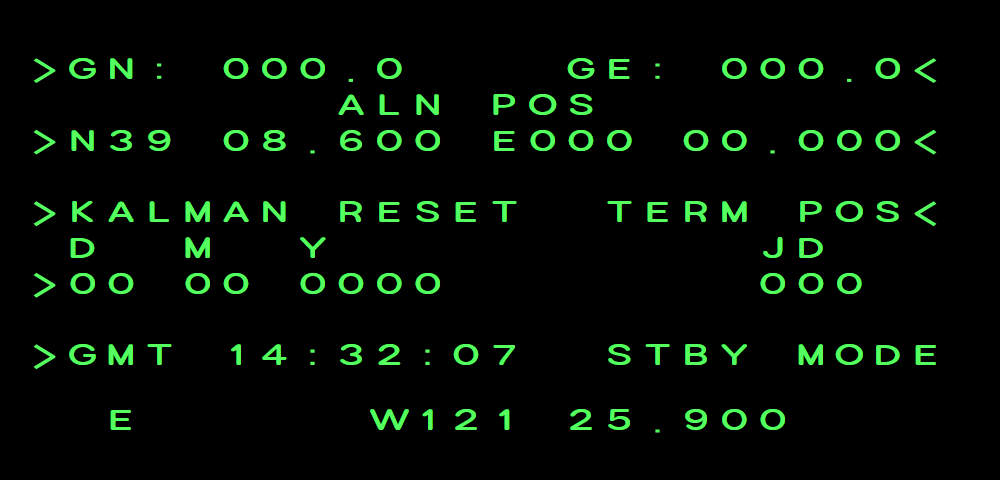
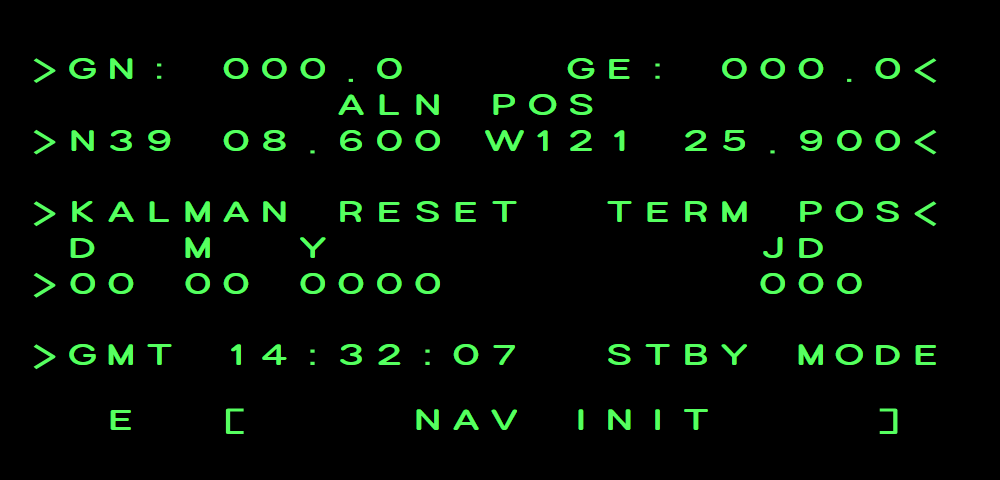
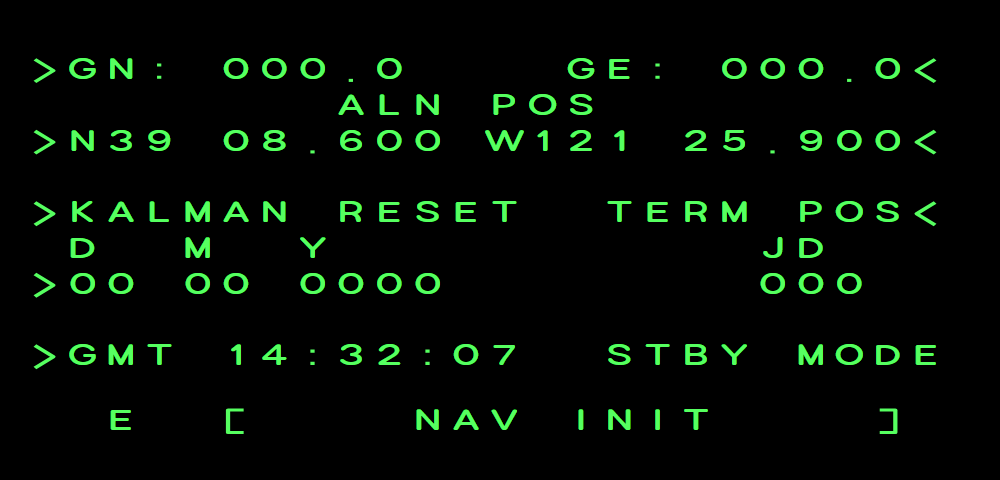
Example - Entering Your Alignment Position N39 08.600 W121 25.900
- AVP off (backup control) and INS ON. Menu knob to NAV-1, then L1 <NAV INIT.
- L2 (latitude). Type 2 (N) 3908600, then ENT.
- R2 (longitude). Type 4 (W) 12125900, then ENT.
- L1 (GN, gravity deflection north), ENT on the zeros shown. The advisory E goes out and STBY MODE< gets its pointer.
- R5 STBY MODE< → scratchpad shows ALN MODE ↑↓ → ENT. The alignment starts. (↑ ↓ would offer 2 POS ALN and TEST MODE instead.)
- Switch the AVP on. When it is up the BCDU goes to its RT page; follow and accept the alignment on MFD NAV → INIT.
Example Latitude typed
Example Longitude typed
Example Position entered
Example ALN MODE offered
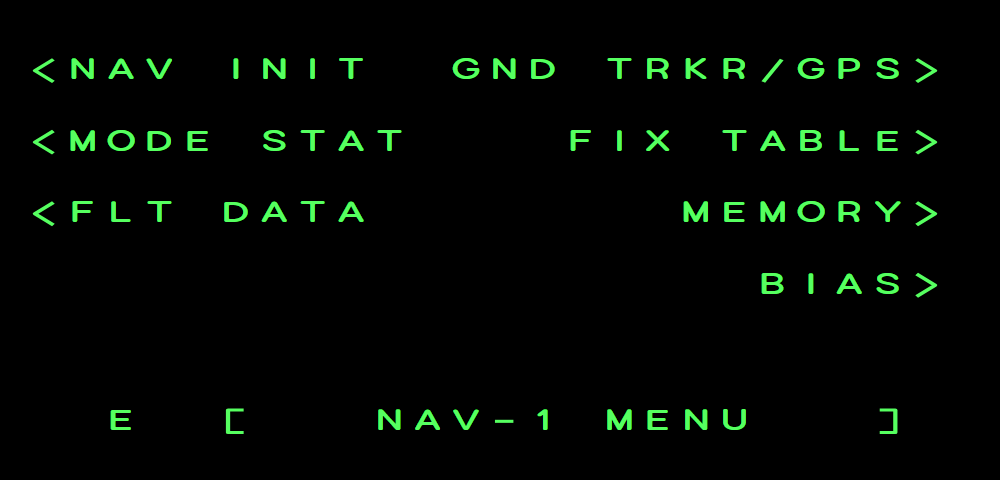
The Pages That Matter
Example BCDU nav1menu
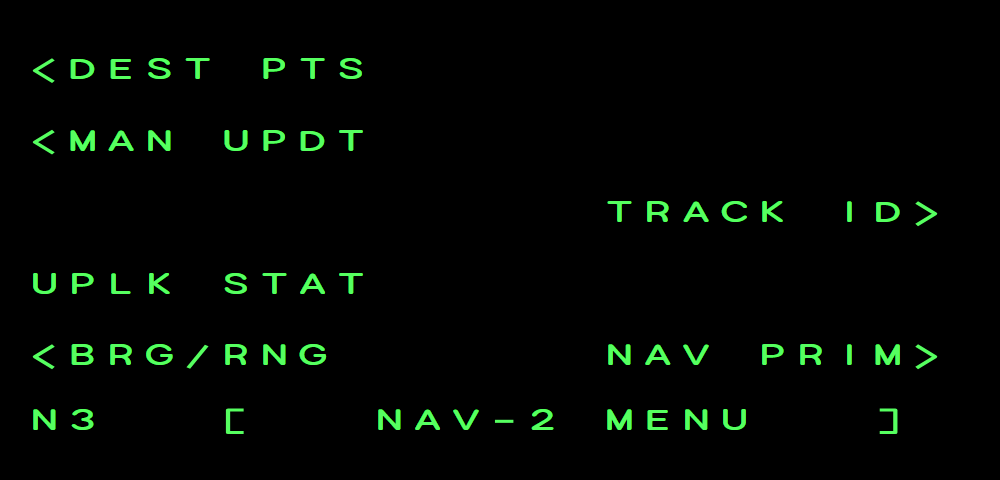
Example BCDU nav2menu
NAV-1 → NAV INIT
Alignment position (latitude / longitude, L2 / R2), date (L4), the INS clock (L5 GMT, settable once a date is in) and the STBY MODE< key (R5), which becomes active once the position and then a gravity deflection are in (L1 GN / R1 GE, zeros will do), or after the INS switch LOAD. Its choices:
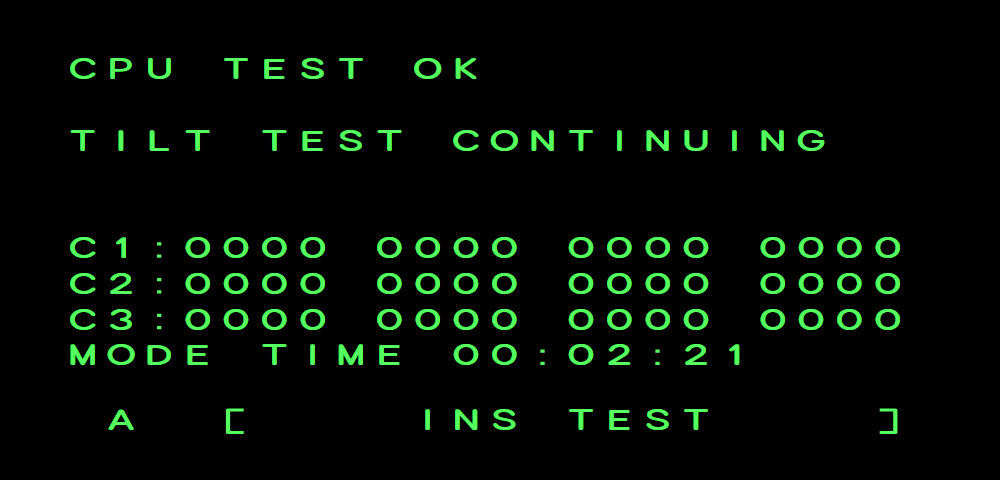
Example BCDU instest
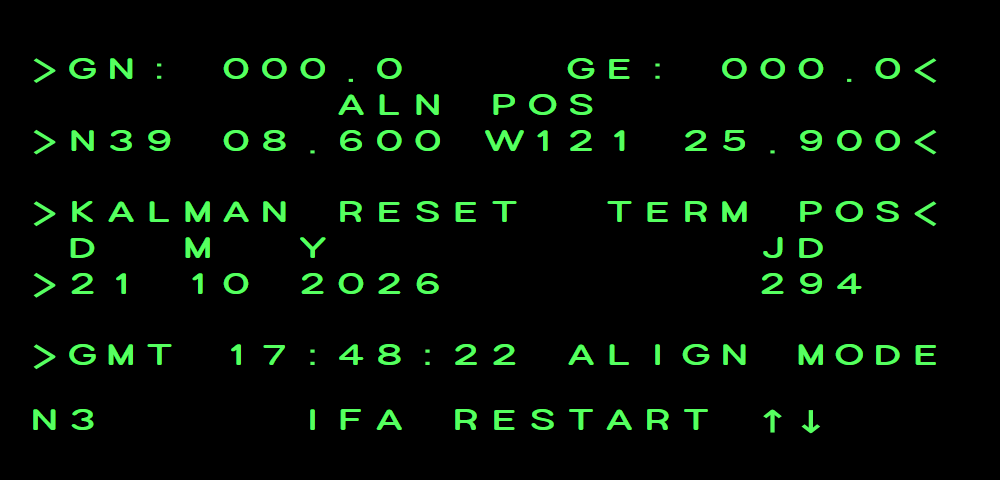
Example BCDU navinit ifa
- ALN MODE - the normal ground alignment.
- 2 POS ALN - a two-position alignment. In our rendition it runs the same timeline and needs the same acceptance; do not move the aircraft.
- TEST MODE - an INS self-test of about a minute, shown on NAV-1 → TEST>. The INS stays in standby. To leave the test, switch the INS off for more than 8 seconds and on again, or start the alignment from MFD NAV/INIT.
L3 >KALMAN RESET + ENT resets the navigation filter while the INS is in NAV: with GPS updating on, the position is pulled back onto the GPS within about a minute. In the air the same key also offers IFA RESTART, which starts an in-flight alignment. R3 switches the display between the alignment position and the terminal position (where the INS was last shut down).
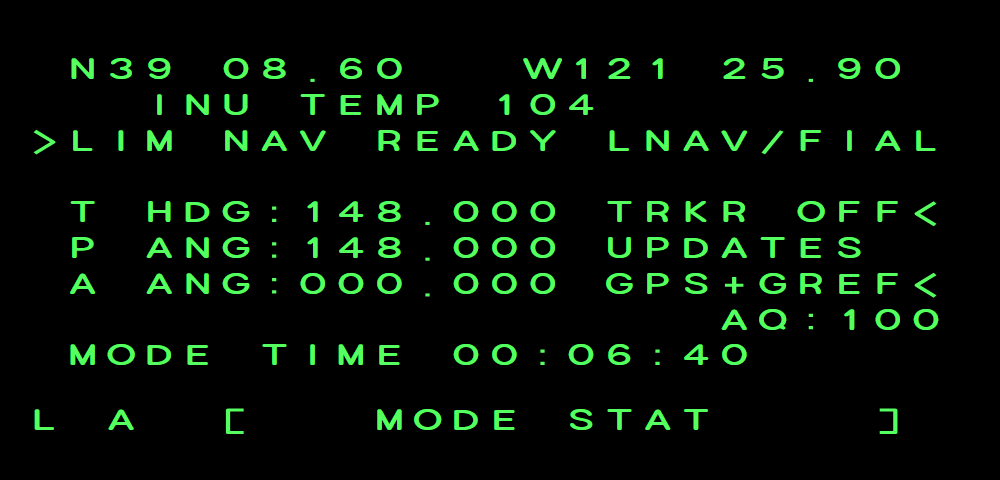
NAV-1 → MODE STAT
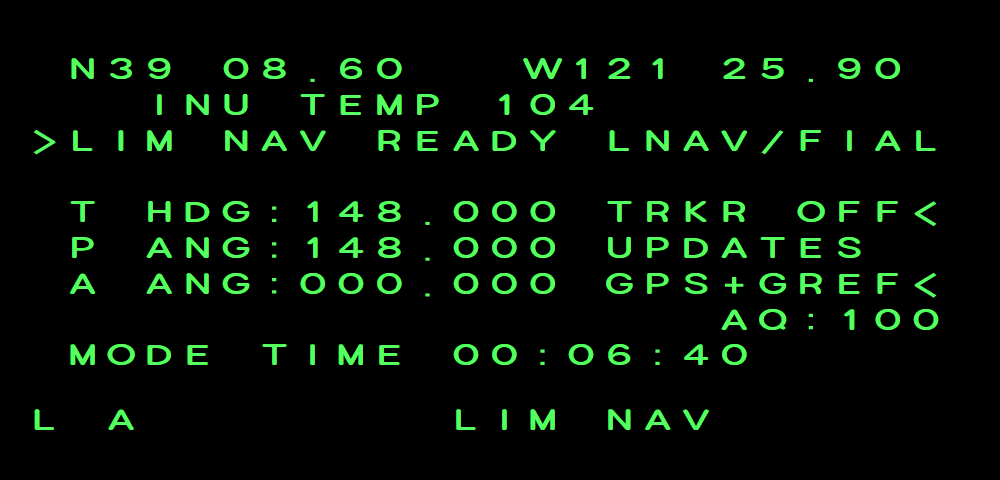
Shows the INS mode, align quality AQ, mode time and true heading. When the alignment is ready, the mode line becomes >LIM NAV READY or >FULL NAV READY: press its key (L2), then ENT, to accept and go to NAV. During an in-flight alignment the page shows IFA, and IFA CHG HDG 45 while the INS asks for the heading change (see INS).
Example BCDU modestat
Example BCDU modestat accept
NAV-2 → DEST PTS (Destination Points)
Example BCDU destpts
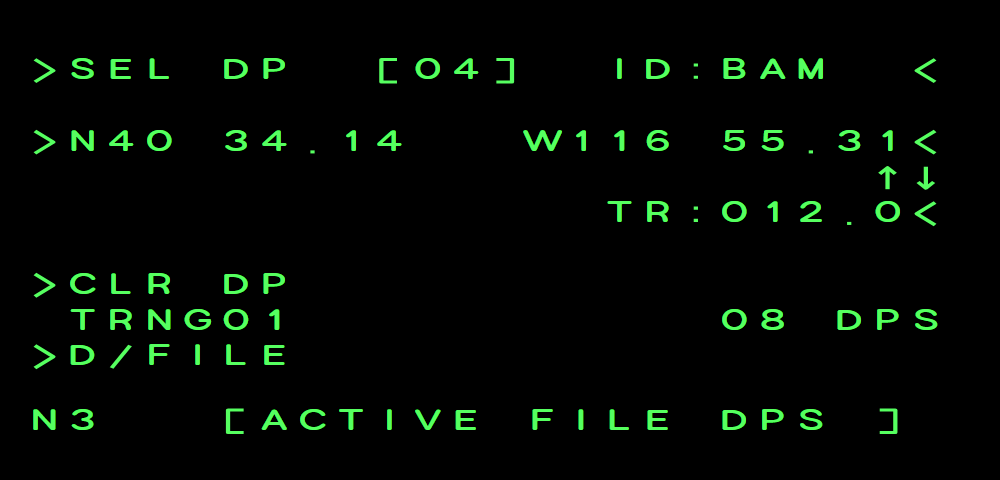
- L1 DP number (or ↑↓)
- R1 name
- L2 latitude
- R2 longitude
- R3 turn radius (NM)
- L4 zero a point (type its number)
- File name (08 DPS = points with a position)
- L5 file (type it; the title shows it)
Create and edit the same destination points the MFD and UFCD use.
Example BCDU nav2menu upl
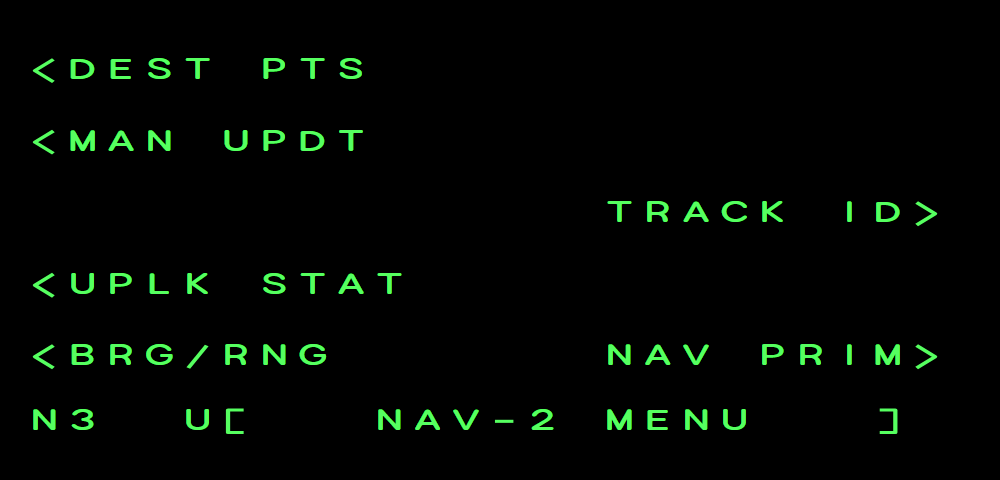
Example BCDU uplkstat
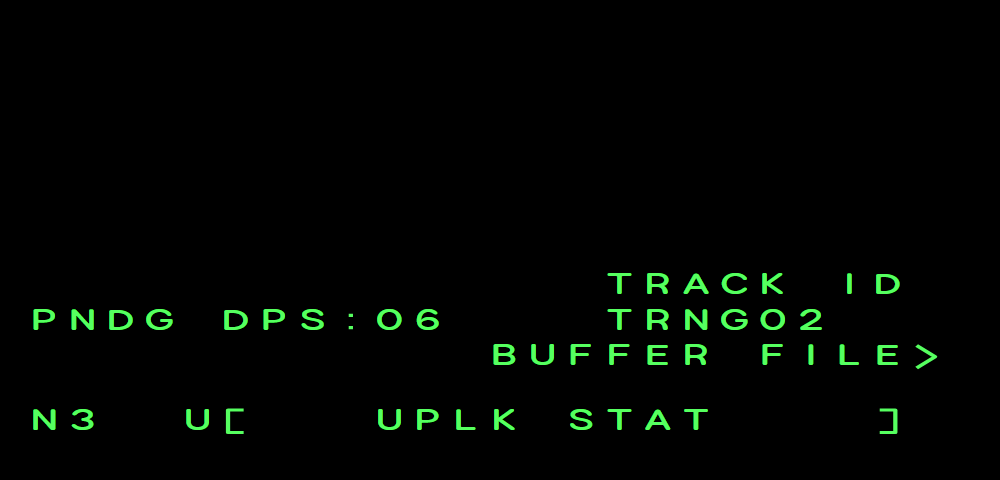
Example BCDU destpts buffer
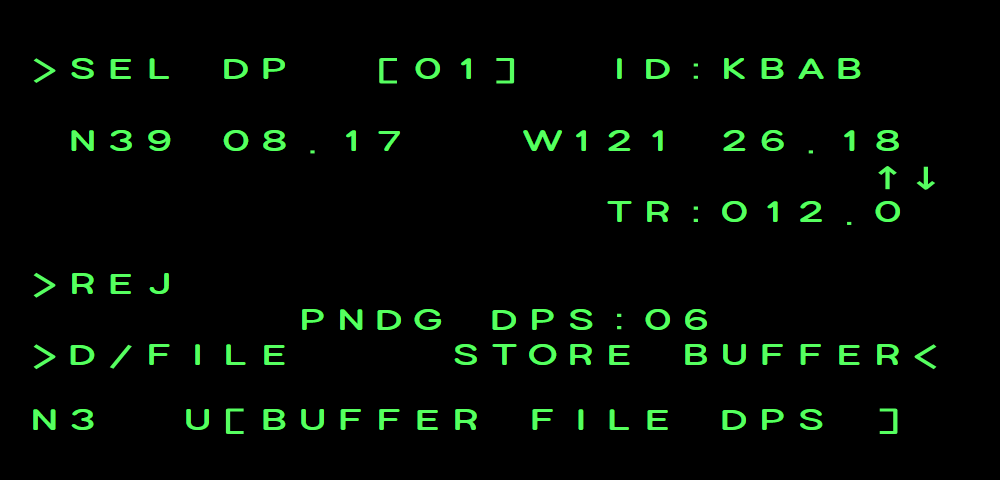
- L5 >D/FILE, type the file and press ENT: 1-4 a storage file, 5 bullseyes, 6 emergency fields; key 1 twice gives A (active), three times B (a pending datalink upload).
- L1 >SEL DP picks the point number 01-99 (or scroll with ↑ ↓).
- R1 name (up to 5 letters), L2 latitude, R2 longitude, R3 turn radius, L4 >CLR DP with the point's number and ENT zeros its position and turn radius (the name stays).
- All 99 points of each file are shared with the MFD and UFCD.
- Buffer file: when the EFB has sent a datalink upload, the file is read-only here. R5 STORE BUFFER< accepts it: for a route, type the storage file 1-4 (1 is offered) and press ENT; a bullseye or emergency upload goes into, and overwrites, its own file with ENT. L4 >REJ takes a DP number: type it and press ENT to remove that one point. The number offered is 00, which throws away the whole upload - so L4 ENT rejects everything.
- A flashing U in advisory position 5 and an arrow on UPLK STAT on the NAV-2 menu tell you an upload is waiting (the line is always there; the arrow only comes with an upload). UPLK STAT shows how many points are pending and its track ID; R5 BUFFER FILE> opens the buffer at its first point.
- The BCDU also has a SUB-BUFFER FILE page for partial uploads that replace single points of a storage file. The EFB ground station only sends complete files, so you will not see it in normal use.
NAV-2 → NAV PRIM / NAV SEC
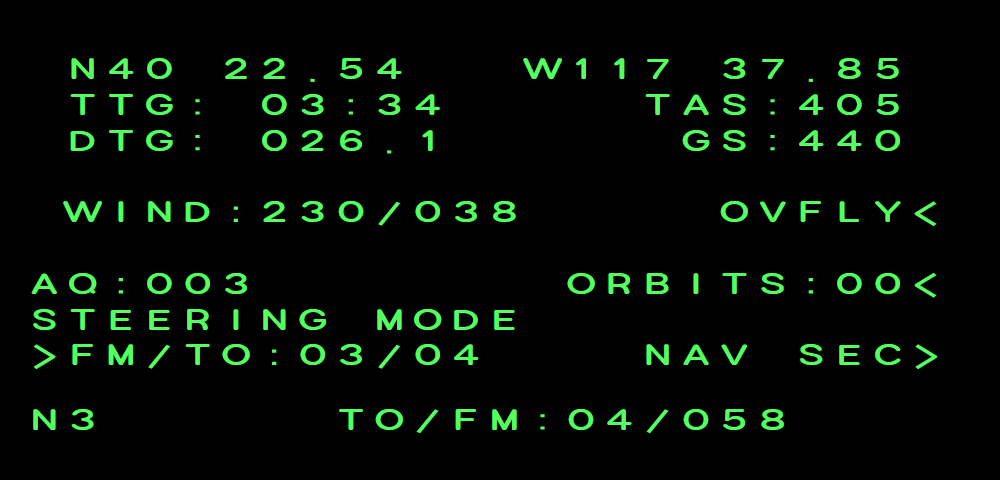
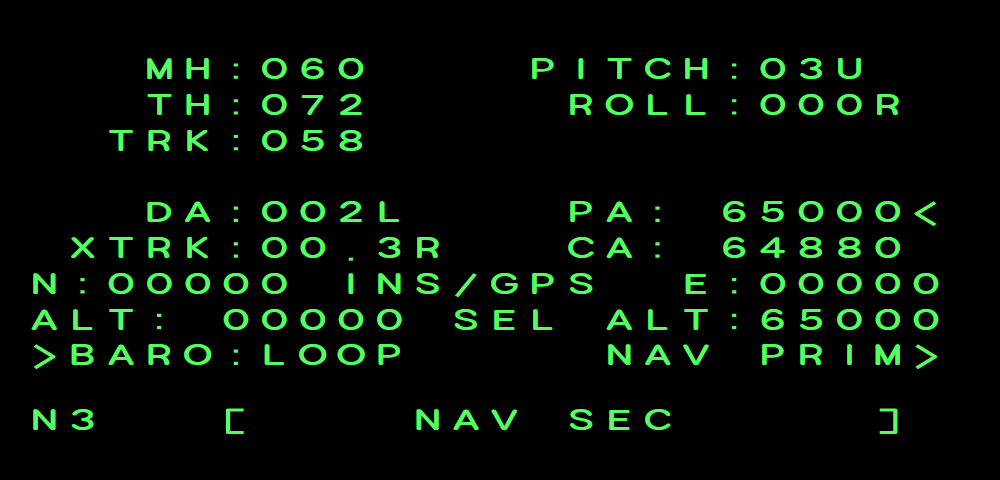
Live navigation read-outs: position, ground speed, true airspeed, wind, distance and time to go, track, headings, pitch, roll and drift. With the INS in NAV and a route in the ACTIVE file, the steering line shows FM/TO:03/04 - the leg you are flying.
OVFLY< (fly over the point instead of turning early) and ORBITS< are available here and are mirrored on the MFD. L5, the steering-mode key, opens a steering entry: ↑ ↓ step through F/T, T/F, T/T, TTD and TFD (shown as FM/TO, TO/FM, TO/TO, TTD, TFD); type the DPs, course and distance and press ENT.
Example BCDU navprim
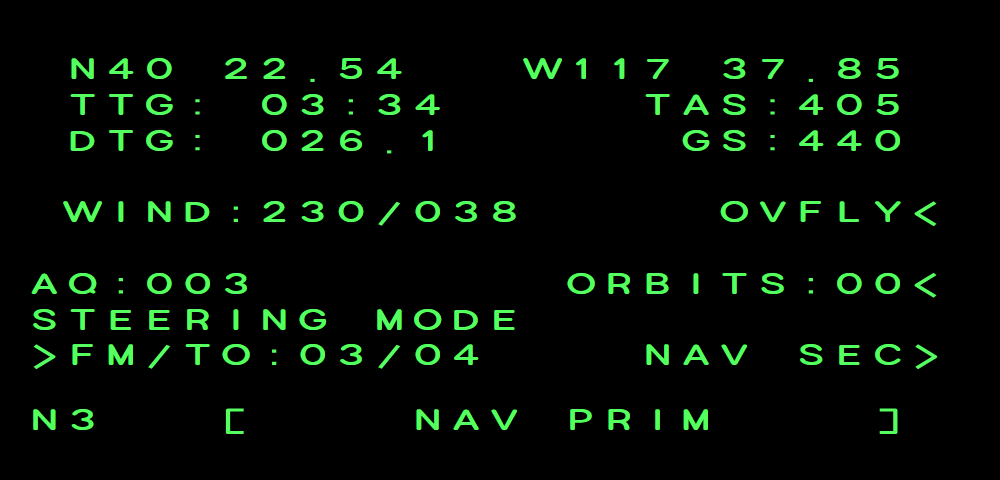
- INS present position (latitude, longitude)
- Time to go
- Distance to go (NM)
- Wind
- R3 overfly (F/T only)
- R4 orbits (F/T only)
- L5 steering mode - the leg flown
- R5 NAV SEC
Example BCDU navprim steer
Example BCDU navsec
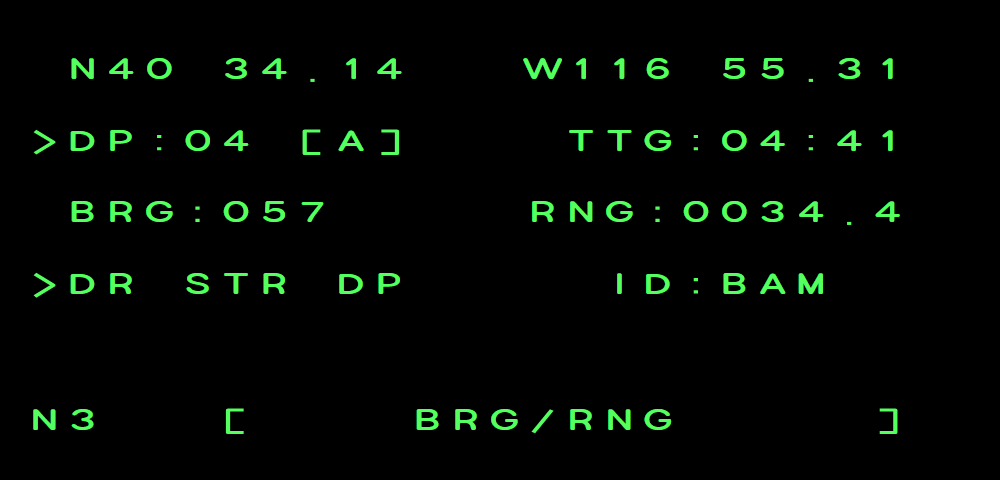
NAV-2 → BRG/RNG
>DR STR DP + ENT makes the selected destination point your steer-to point ("direct to"). L2 selects the point; only points of the active file (A) can be steered to. The MFD and UFCD follow.
Example BCDU brgrng
NAV-2 → MAN UPDT (Manual Position Update)
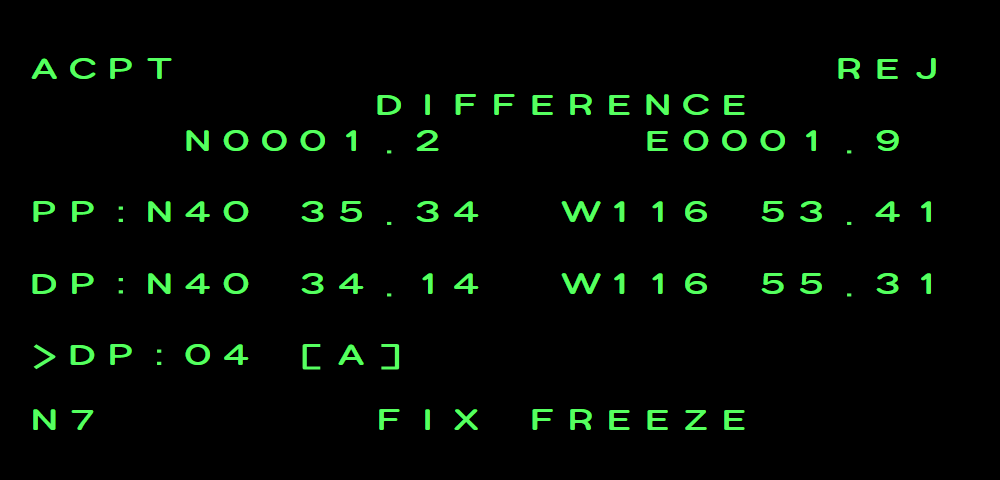
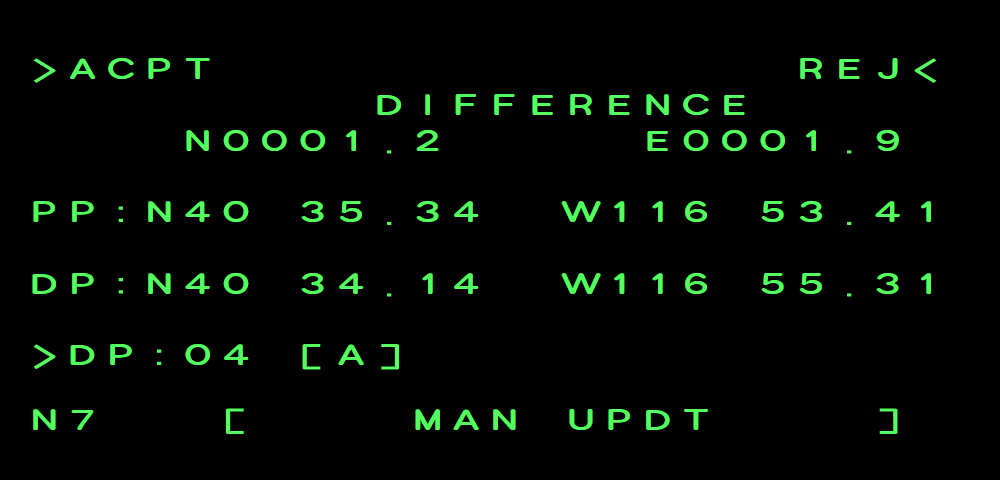
Corrects the INS over a known point - the BCDU version of the MFD NAV/DATA manual update. L5 >DP: selects the point (number and file in one entry, for example 07 A for DP 7 of the active file). The INS position (PP) and its DIFFERENCE to the DP update live; exactly overhead press FIX and ENT to freeze them - then ACPT and REJ get their arrows.
L1 >ACPT + ENT moves the INS position by that difference, R1 REJ< + ENT throws it away.
Example BCDU manupdt fix
Example BCDU manupdt
NAV-2 → TRACK ID
Lists the names (track IDs) of storage files 1-4 and of the active file.
Example BCDU trackid
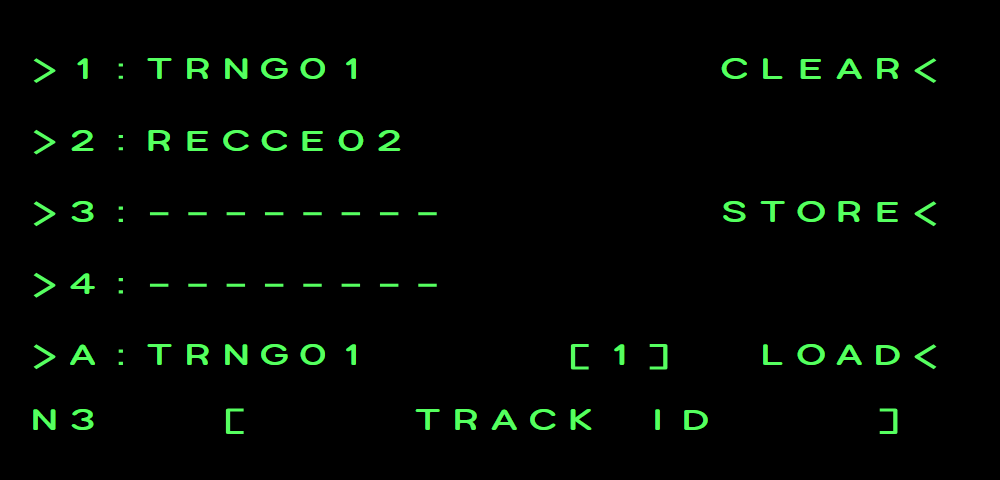
- L1-L5 rename a file (up to 8 letters and digits); an M marks a name you have changed.
- R1 CLEAR< takes a number - 1-4 one storage file, 5 the bullseye file, 6 the emergency file, 0 all four storage files - then ENT.
- R3 STORE< copies the active file into storage file 1-4.
- R5 LOAD< makes storage file 1-4 the active file, steering from DP 01. While the autopilot flies NAV it reads A/NAV and does nothing.
- With EMER the active file, the active line reads A:EMERGENCY.
CNI Key - Radios
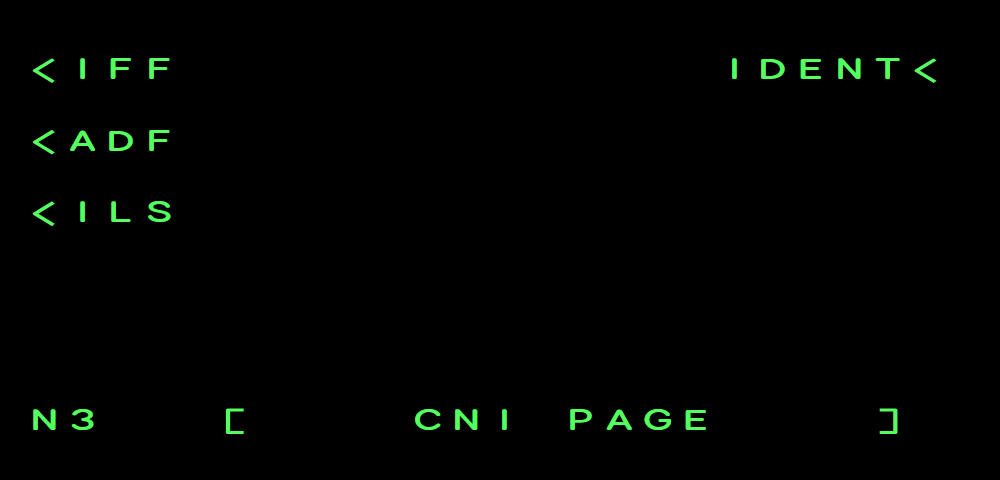
Three working pages (the HF radio is not fitted), and R1 IDENT< + ENT sends a transponder ident (IFF on, NORM or EMER); it reads ON IDENT for 5 seconds.
Example BCDU cni
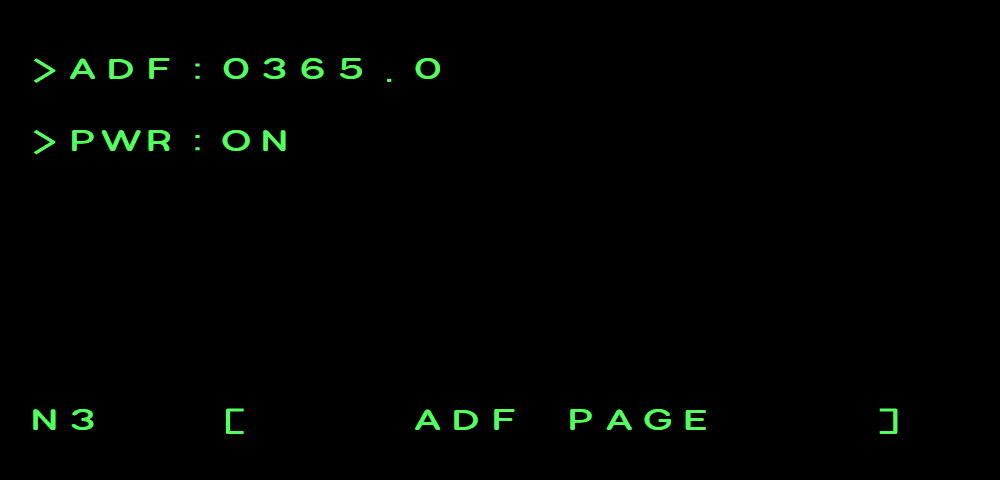
Example BCDU adf
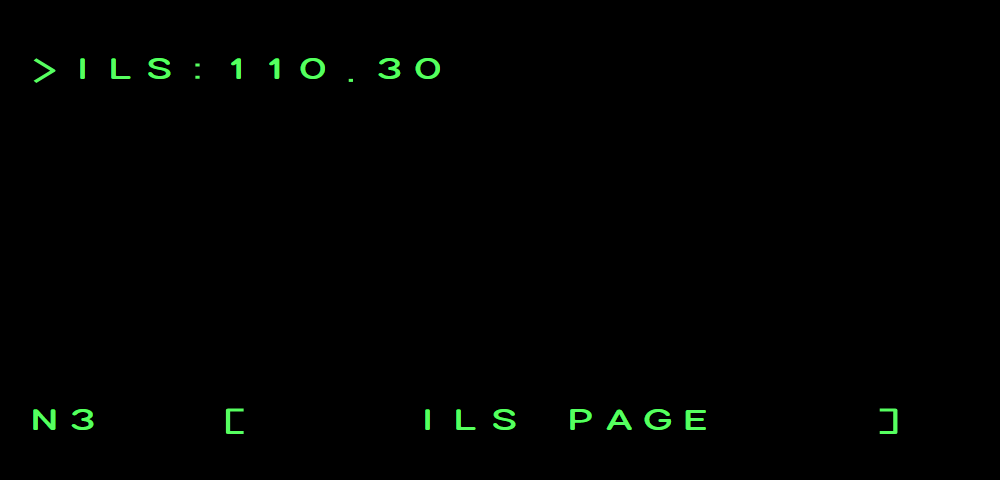
Example BCDU ils
- <IFF (L1): the IFF panel - see below.
- <ADF (L2): L1 ADF frequency 190-1749.5 kHz (0365.5 style), L2 PWR ON / OFF. These are the same settings as the ADF row of MFD COM/CNI.
- <ILS (L3): L1 tunes the ILS frequency (108.00-111.95). Example 110.30: type 11030 ENT.
IFF Panel and Mode S
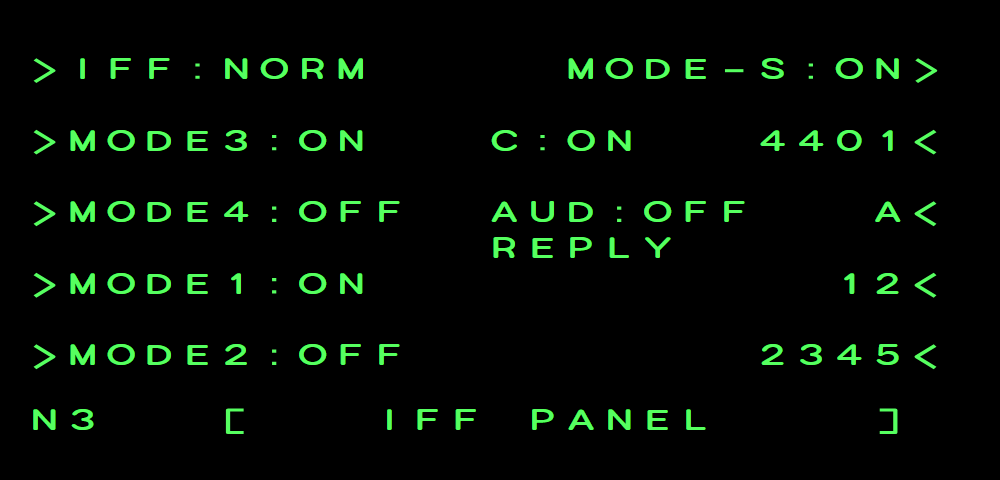
The BCDU is a third control head on the same transponder as the UFCD IFF page and the MFD CNI page - a change on one shows on the others.
Example BCDU iff
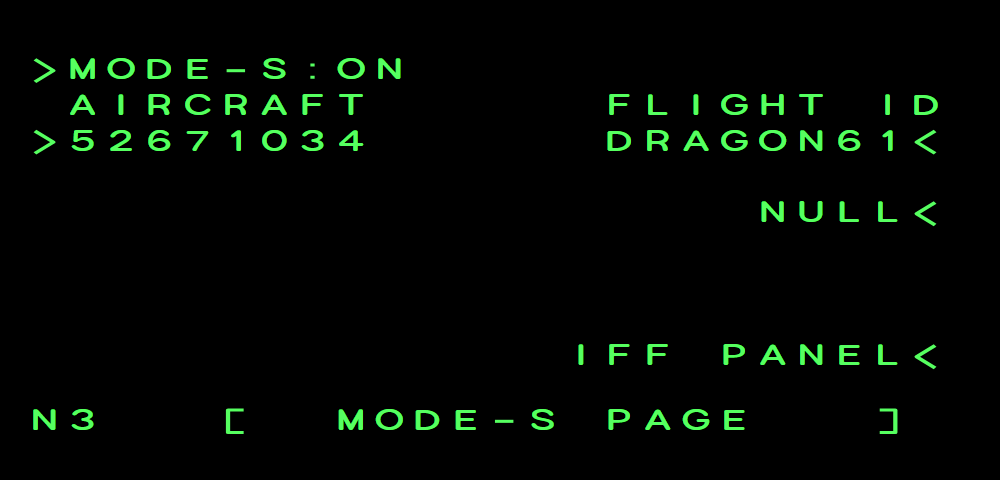
Example BCDU modes
- L1 >IFF:STBY: the scratch pad offers the next master mode (STBY → NORM → EMER), ENT selects it. EMER squawks 7700; leaving EMER puts your previous code back.
- R2: the Mode 3 code - four digits 0-7, then ENT. L2 steps Mode 3 / C: 3 ON C OFF → 3 ON C ON → OFF. REPLY shows while the transponder answers.
- R1 MODE-S> opens the Mode S page: Mode S ON / OFF, the aircraft code and the FLIGHT ID (R2, up to 8 letters and digits; it starts as your MSFS ATC ID). NULL< clears the flight ID.
- Modes 1, 2 and S can be set for realism but have no effect in the simulator. Mode 4 ON without a code gives IFF MODE 4 RPLY FAIL (see the UFCD IFF page), and the panel shows CAUTION where it shows REPLY. With the IFF switch off the page reads IFF:OFF.
FIX Key
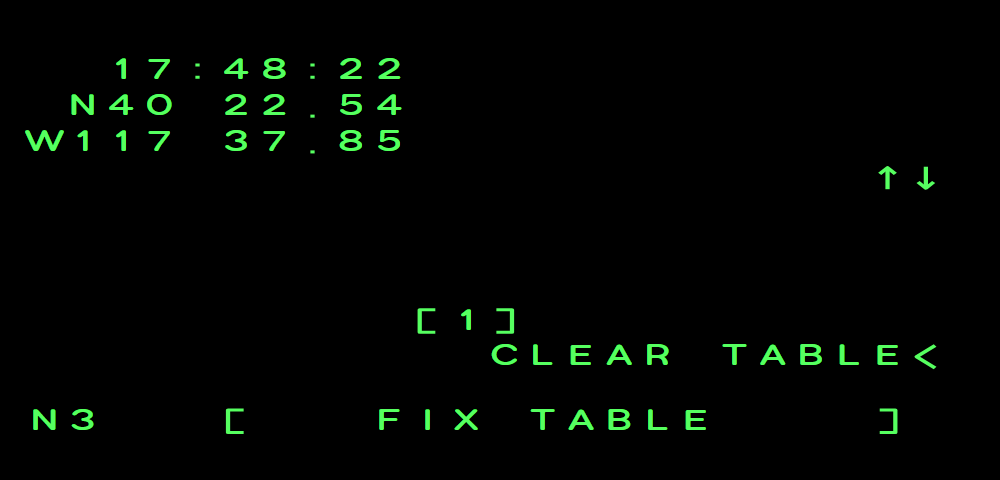
Press FIX then ENT to record the present time and position. The fix table (NAV-1 → FIX TABLE>, 32 slots) is the same one the MFD NAV/FIX page shows. The same press also freezes the position for MAN UPDT. Like every BCDU key it only works with the AVP off.
Example BCDU fixtable
Status and Other Pages
The BUL and EMR keys show the bullseyes and emergency airfields with bearing and range. The top EMR entry (>EMR + ENT) is an emergency direct steer to that field: as on the UFCD EMER page, it makes the EMER file the active file and is refused while the autopilot flies NAV.
The GPS and DDL knob positions and the EW key: INOP - these pages are present for completeness and have no effect on the simulation.
Example BCDU bullseye
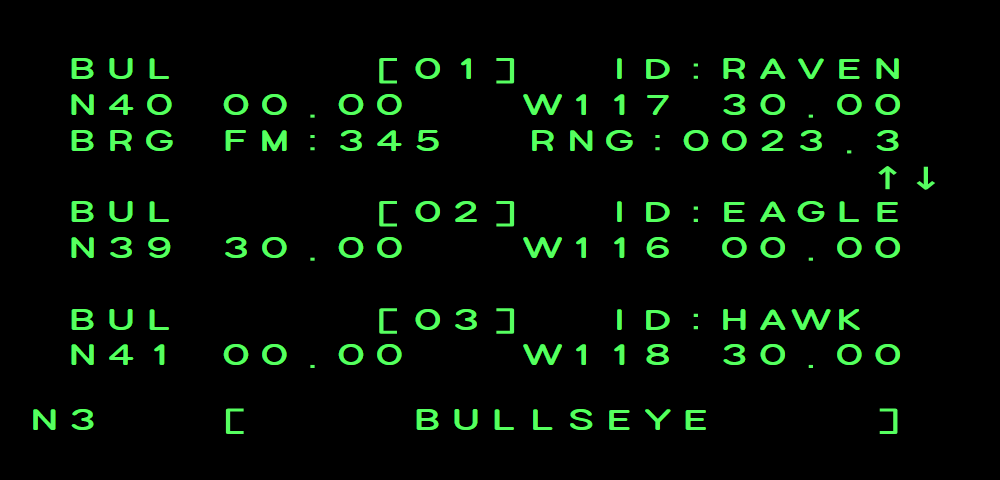
Example BCDU emergency
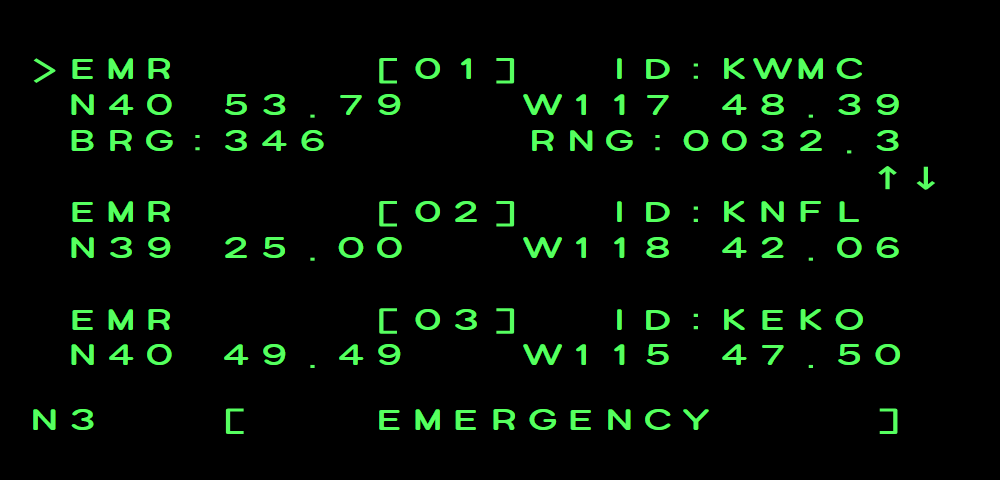
Example BCDU egps
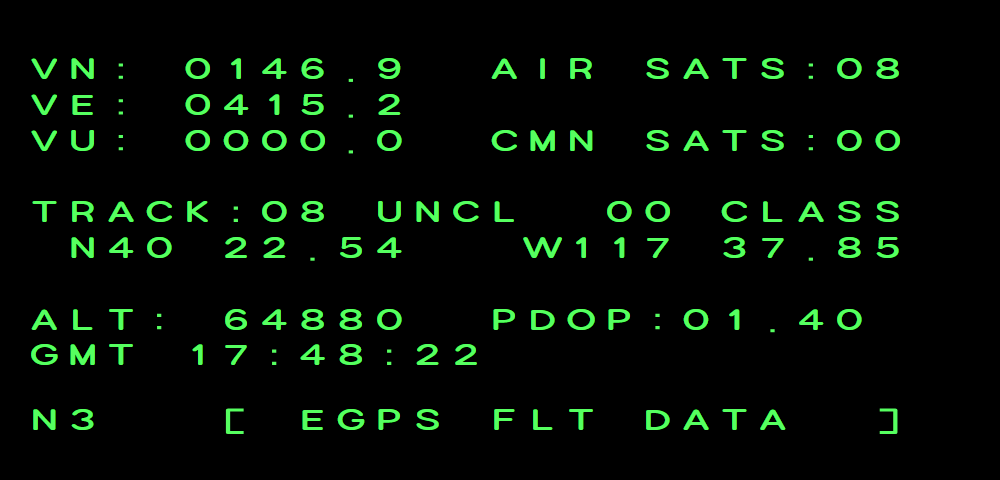
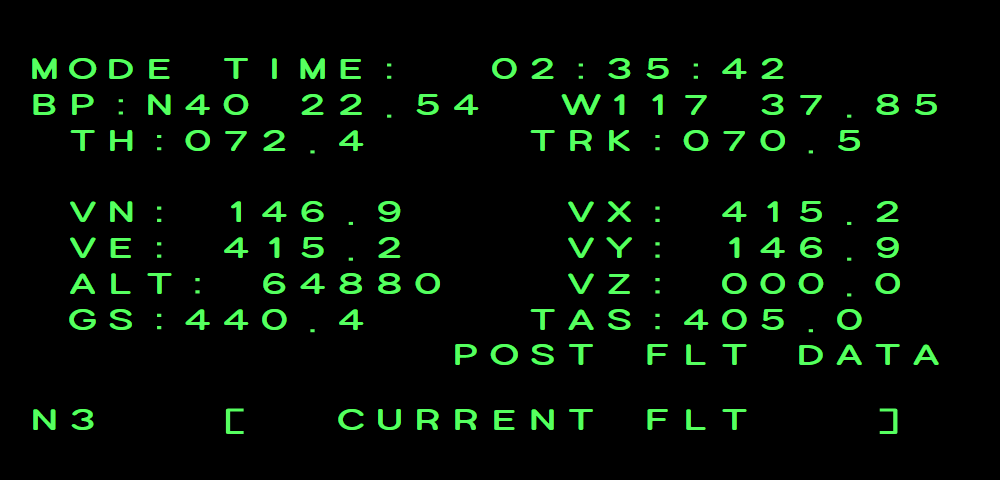
Example BCDU fltdata
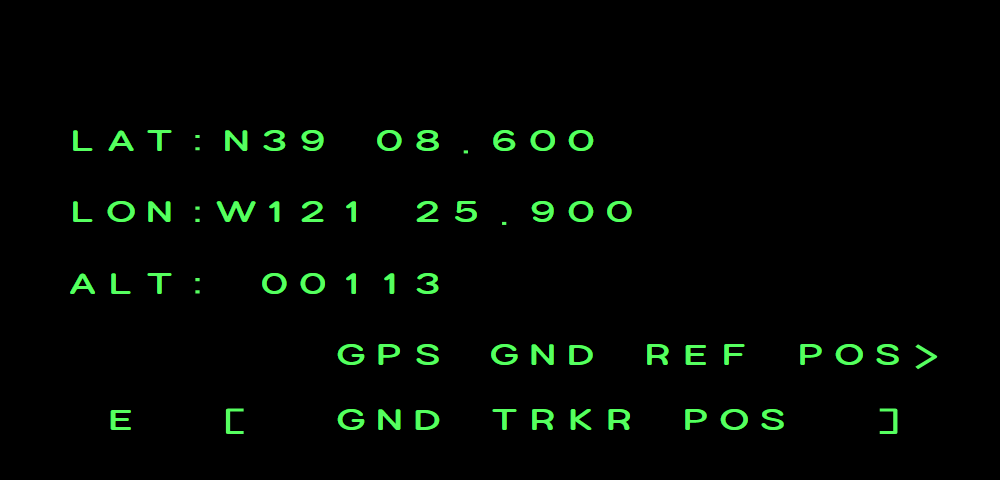
Example BCDU gndtrkr
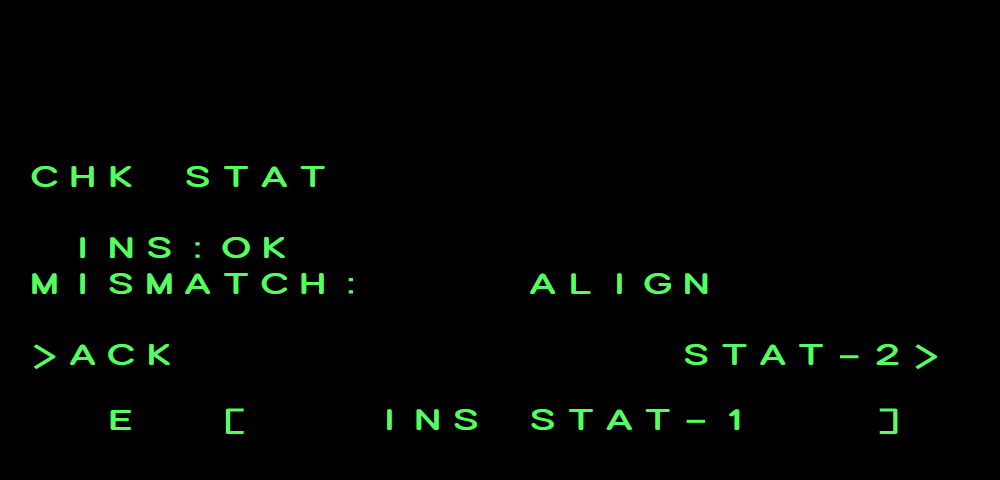
STAT - CHK STAT and ACK
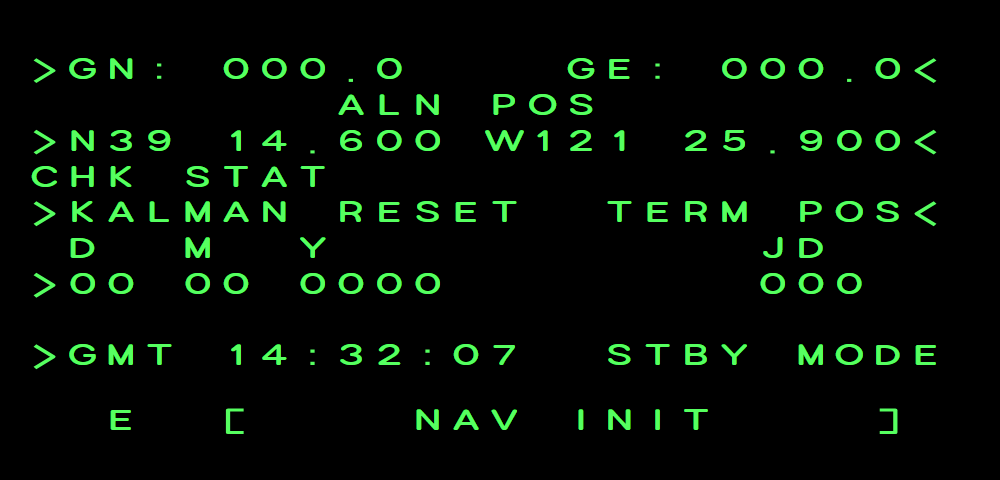
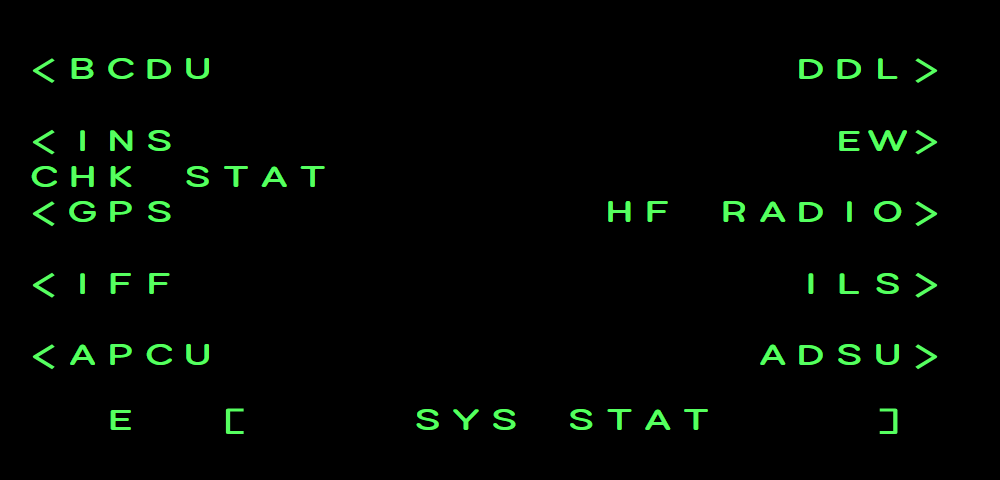
In backup control the BCDU watches every subsystem. When one reports a new fault or caution (for example an ALIGN MISMATCH), CHK STAT appears on line 4 of every page, flashing. Turn the menu knob to STAT: on SYS STAT the name of that subsystem flashes.
Open its page and press L5 >ACK, then ENT, to acknowledge it. IFF, for example, flashes with IFF MODE 4 RPLY FAIL, and its IFF STAT page reads MODE 4 CAUTION.
Example BCDU chkstat
Example BCDU sysstat
Example BCDU insstat