 DOCUMENTATION
Multi-Function Displays (MFDs)
The U-2S is equipped with three identical Multi-Function Displays (MFDs) - left, center and right. Each MFD is a portrait LCD surrounded by a bezel of push buttons and rocker switches. Any display can show any page, so you can arrange the cockpit to suit the phase of flight: PFD in the middle, fuel on the left, navigation on the right, for example.
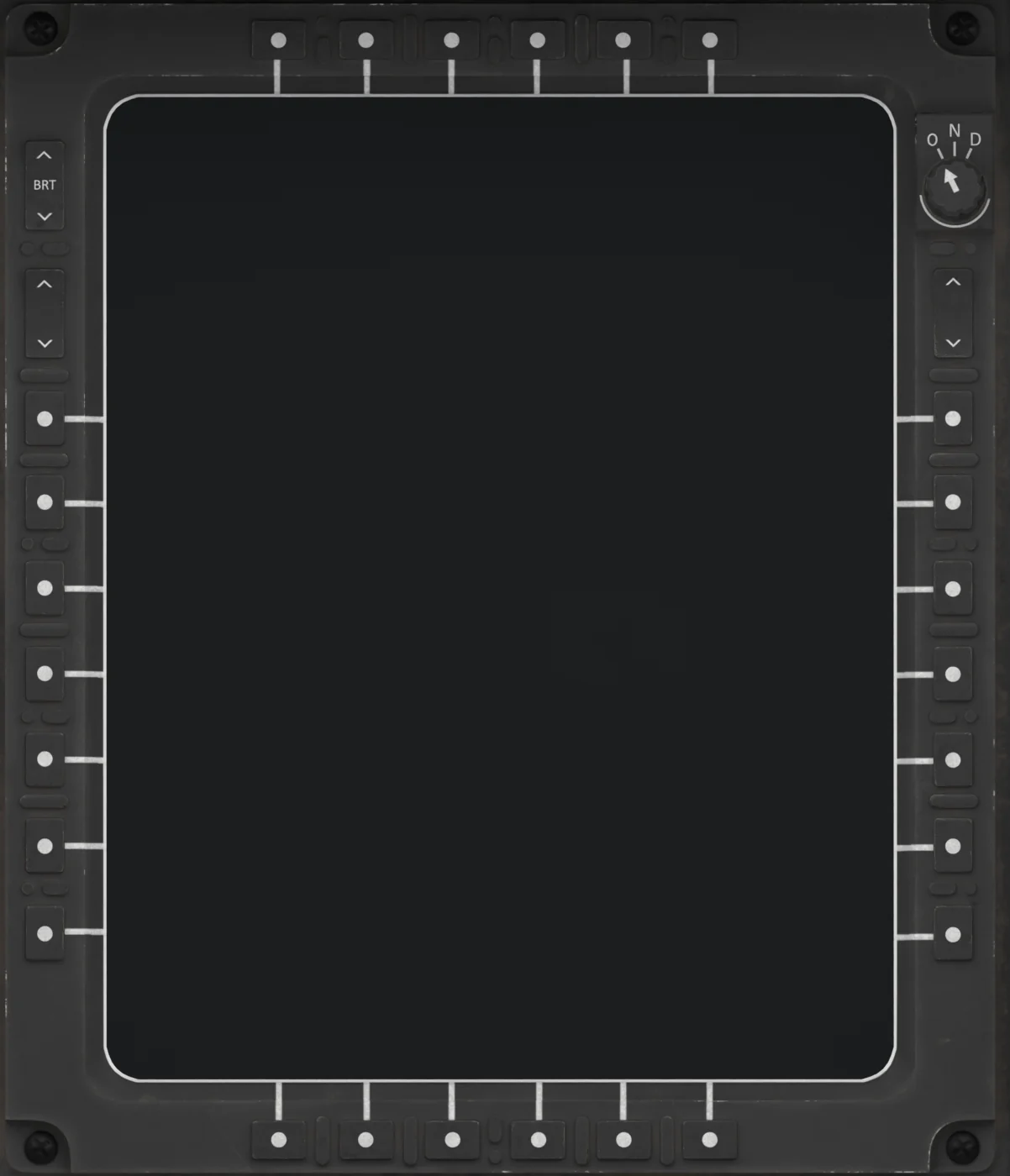
- Top Keys (T1-T6): Select the sub-page of the current menu. The sub-page names are shown along the top of the screen, the active one in green.
- Bottom Keys (B1-B6): The main menu - FLT COM NAV SYS PME STAT. Always available. The active menu is green.
- Left Side Keys (L1-L7): Soft keys. Their function is the legend drawn next to them on the current page. A gray legend is not available.
- Right Side Keys (R1-R7): Soft keys, same logic.
- INC/DEC Rockers (one each side): Change the selected value, or turn the page on multi-page displays. On most pages both do the same thing; on the MAP page the left rocker is always the map scale and the right rocker serves the selected function.
- BRT Rocker: Screen brightness, 15-100 %. Remembered per display.
- OFF / NIGHT / DAY Knob: Power knob for this display. OFF blanks the display (keys are dead), NIGHT halves the brightness range, DAY is the normal position. Every turn from OFF to NIGHT or DAY - even a quick flick - runs the display's 9-second power-on test (see Power below).
- Alert Line: The bottom strip of every page shows the two most recent alerts, the newest on the left. The rules above and below it take the color of the most serious active alert and disappear when there is none (SYS / CAL draws its own cyan rules in that place). When an alert is showing, L7 becomes ACK.
The INC/DEC rocker is deliberately slow (one step per press; held, about two and a half steps a second - on the MAP page it speeds up once you keep holding). For large changes, use the UFCD knobs or keypad - see Up-Front Control Display (UFCD) / Using the UFCD keypad for MFD entries.
Pages
The MFDs can display six menus, selected with the bottom bezel keys. Each menu has its own sub-pages on the top keys:
- FLT - Primary Flight Display (PFD)
- FLT - Map, Traffic and Checklists (MAP, EW, EWMAP, EFA)
- COM - Communication Pages (CNI, COM1, COM2, HF)
- NAV - Navigation Pages (DATA, DPS, FIX, RPLAN, INIT)
- SYS - System Pages (PERF, CNSUM, CAL)
- PME - Mission Equipment (CAM, RDR)
- STAT - Status Pages (ICAW, HIST, FAULT, BUS, LOAD, VERS)
All three displays start on the PFD.
Power
Each MFD needs two things: power for the display itself, and the Avionics Processor (AVP switch, right console), which draws the pages.
- Display power comes from the essential DC bus through the display's own OFF / NIGHT / DAY knob - battery or ground power is enough. Without power, or with the knob in OFF, the display is dark.
- Power-on test: when a display gets power it runs a 9-second test - raster, color bars, grid, character set, then an L MFD POWER ON BIT list (C MFD / R MFD on the others) whose items turn to PASS, ending in BIT COMPLETE. Keys are ignored while it runs.
It runs every time the knob goes from OFF to NIGHT or DAY, even for a quick flick, and when bus power comes back after more than 5 seconds without it. A shorter dropout, like the hand-over from ground power to the generator, does not restart it. A flight that loads with the displays already powered (runway or air start) skips it.
The test does not wait for the AVP, and the three displays come up slightly out of step.
- AVP: after the test the display shows DISPLAY BUS OR AVP FAILURE until the AVP is up - 7 seconds after you switch it on, or 2 minutes with the EFB option Avionics startup time set to Realistic. Then the pages appear.
Example MFD bitbars

Example MFD bit
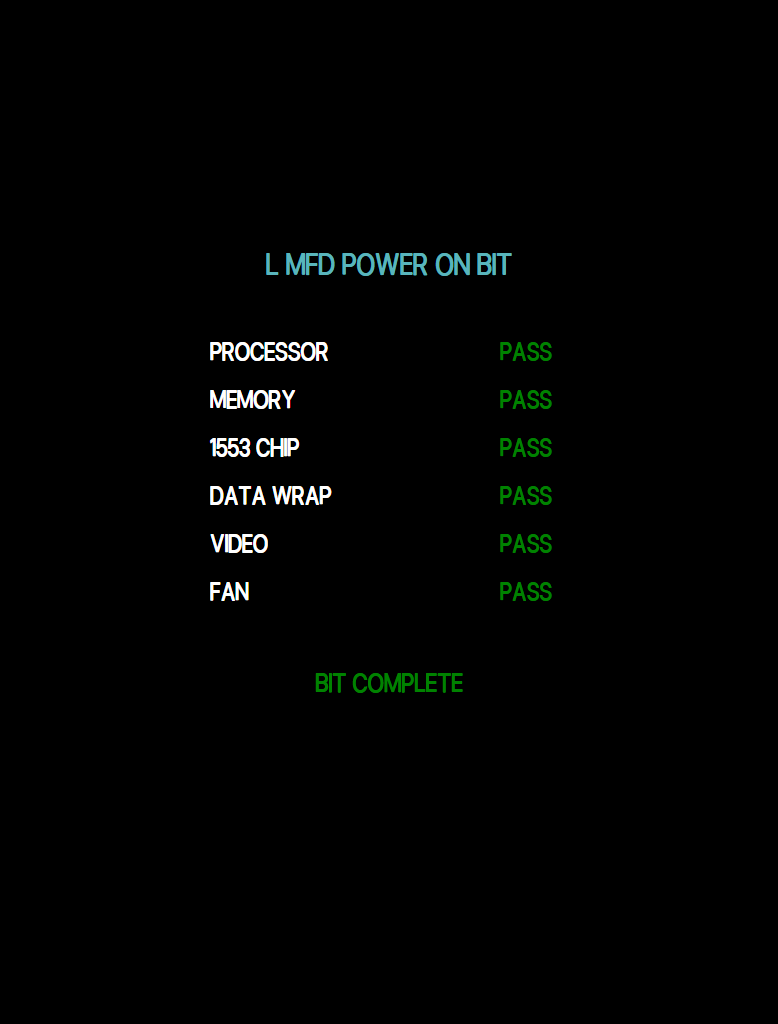
Example MFD avp

After every AVP start you must set the altimeter once - see Primary Flight Display / Red ALT box. From Cold and Dark the three MFD power knobs are OFF: turn each one to DAY.
Alerts and ACK
The alert line uses three colors: red = warning, yellow = caution, cyan = advisory. L7 ACK acknowledges the newest alert on all three displays at once. A small arrow under ACK means more alerts are waiting. Acknowledging only clears the line - the alert stays on the STAT/ICAW page until its cause is gone.
Editing Values
- Direct fields (PFD heading, altitude, baro, course, speed bug; fuel bugs): press the soft key, a box appears, change the value with INC/DEC, the UFCD knobs, or UFCD PAD + digits + ENT. PFD fields close by themselves after 15 seconds.
- Pages with an EDIT key (NAV DATA, NAV INIT, COM CNI): press EDIT. The left keys become L1 up, L2 down, L3 next field and L5 EXIT. A green box marks the selected field.
Example MFD cniedit
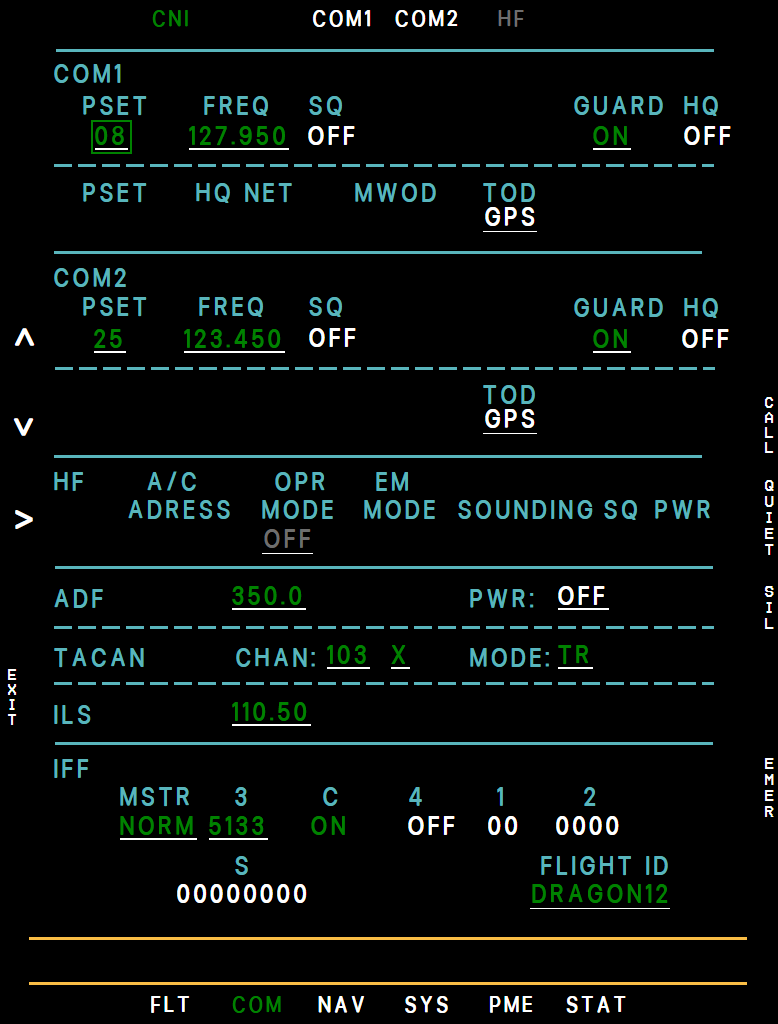
- Selected field (green box)
- Up (L1)
- Down (L2)
- Next field (L3)
- EXIT (L5)