 DOCUMENTATION
Electronic Flight Bag (EFB)
The U-2 EFB is an app on the standard MSFS tablet: open the tablet and choose U-2 EFB. It is made for the tablet held upright. Seven tabs run along the bottom: Aircraft, Ground, Flight plan, Charts, Food & Drink, Datalink and Settings.
Sim values. Performance values are measured in the sim. They may not accurately represent (nor do they intend to accurately represent) the performance of the real aircraft.
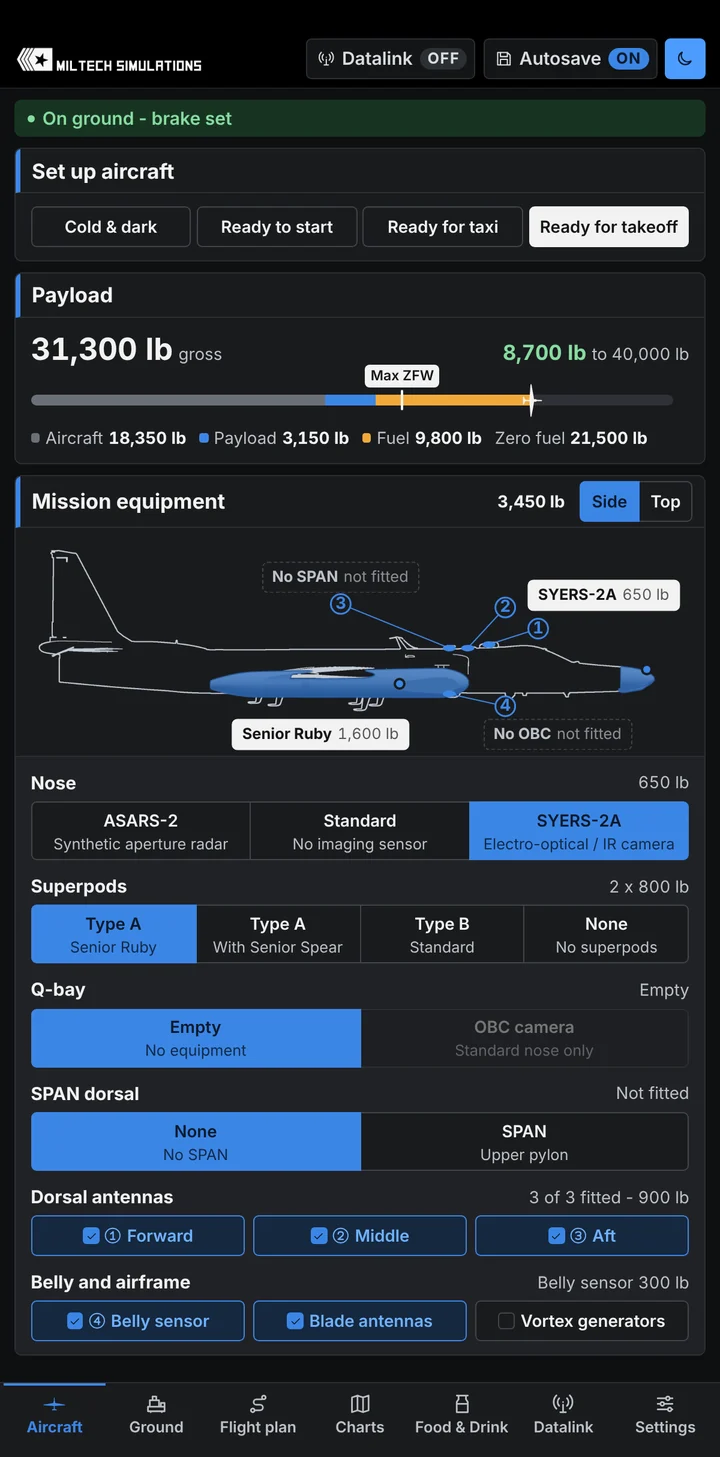
The header holds the Datalink chip, Autosave and Night mode. Under it a status strip shows whether you are on the ground (and whether the brake is set) or in flight, and on the right what matters on the open tab, for example Equipment can move on the Ground tab or No plan sent on the Flight plan tab. Messages pop up above the tabs and close by themselves; errors stay a little longer, and the × closes one at once.
When the app opens it shows Restoring cockpit settings for a moment while your saved configuration is applied.
| Header | What it does |
|---|---|
| Datalink chip | Shows whether the datalink is ON or OFF and opens the Datalink tab. It does not switch the datalink: that is done on the Datalink tab. |
| Autosave | ON (default): your equipment, the Settings options (the plushie, flag and action camera too) and the food menu carry over to the next flight on this PC. OFF: they reset at the next flight. |
| Night mode | A dark palette for the whole app, remembered on this PC. |
Remembered on this PC whatever Autosave says: night mode, brightness, display size, which Settings sections are folded, your SimBrief Pilot ID, your datalink choice, the chart slots, your custom chart pages and your chalk drawings. Not kept: the CAM road lights (on at every flight start), the EFB tablet and its holder (shown at every flight start), the ground starting air and the vehicle layout.
Aircraft Tab
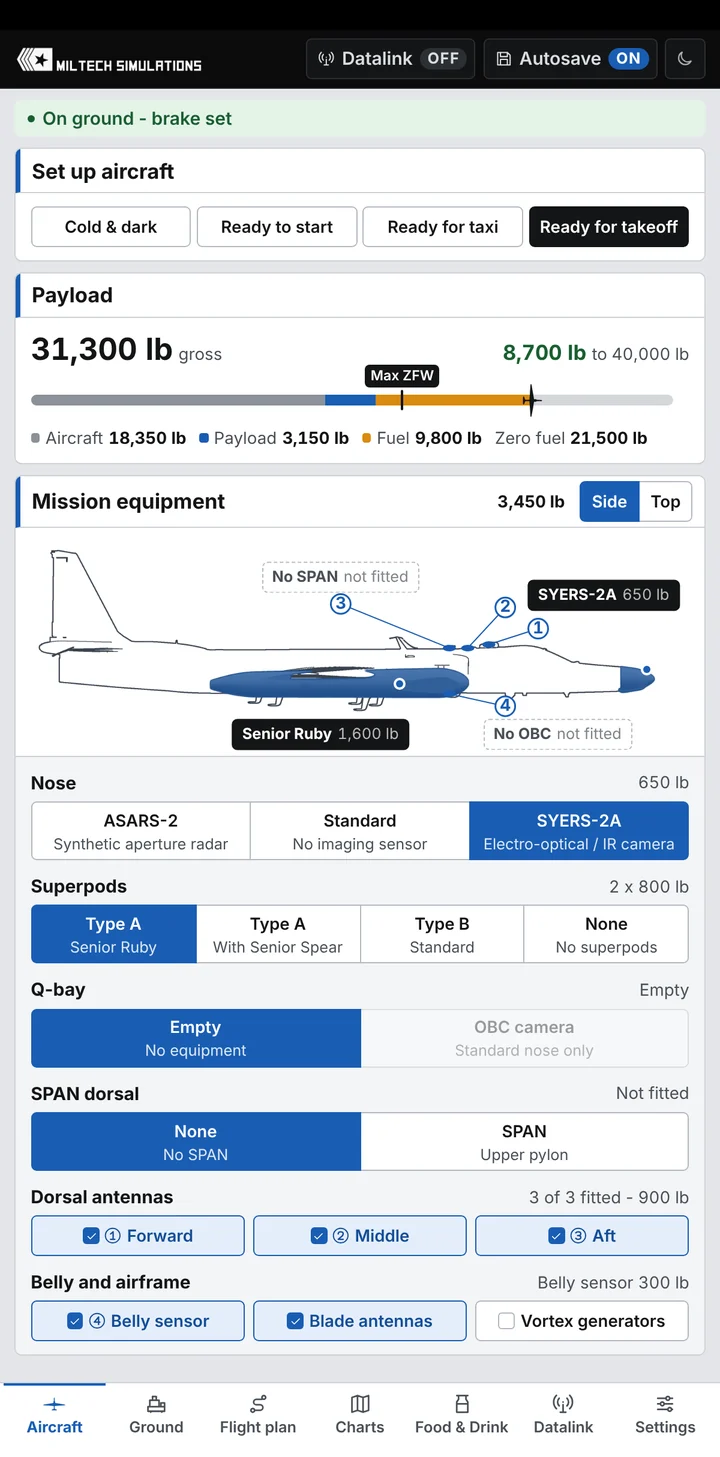
Three cards: Set up aircraft, Payload and Mission equipment. The equipment can be changed on the ground or in flight; only Set up aircraft needs the ground.
Set up aircraft
On the ground and stopped, one press sets the whole cockpit up for you. Anywhere else the line under the buttons says why it cannot run. While a preset runs the line says what it is doing (preparing the aircraft, starting the engine, bringing ground power, clearing the ground equipment) and what it waits for; afterwards it shows the last state applied, or why a preset could not finish.
| Preset | What it does |
|---|---|
| Cold & dark | Stops a running engine at once and switches everything off, external power too. It fits the wheel chocks and the covers. |
| Ready to start | Does the EFA for you up to the ENGINE START checklist: ground power connected with EXTERNAL POWER ON, the avionics up with the INS aligned, the AFCS switches on, pitch trim in AUTO, oxygen ON, the nav lights flashing, the SPOILER switch in ARM and EW CONT in REC. The engine stays off and the canopy stays open; the air-start unit waits on the stand for your Attach. Where no power unit can come (on a runway, or if external power does not come on) it finishes on the battery and the line says so. |
| Ready for taxi | The engine goes straight to ground idle (no start sequence), with the generators on line, the avionics up with the INS aligned, the boost pumps and sump tanks on, oxygen ON, the canopy closed, the nav lights flashing, the beacon and taxi light on and the Mark IV MASTER on. It first clears the carts and the stairs (as Disconnect all) and waits until they have gone. |
| Ready for takeoff | As Ready for taxi, and also the canopy seal ON, the SPOILER switch in ARM, EW CONT in RPT, the landing light on, the transponder to NORM, the AFCS switches on and the PFD and map pages up. The pitot heat stays off: switch it on just before takeoff if you need it. |
The Ready presets take off the covers and the gear pins, but not the wheel chocks, and the pogo pins stay for the runway crew. Your MSFS Engine auto-start key runs Ready for taxi and Engine auto-shutdown runs Cold & dark (see the Keybinds Guide).
Payload
The gross weight in large figures, and beside it how much more you can load before the 40,000 lb maximum gross weight. The bar builds that weight (aircraft, payload, fuel) with a tick at the maximum zero fuel weight (Max ZFW: 20,000 lb for the fuselage plus the superpods and the SPAN). Above it, or above 40,000 lb gross, a red Over max ZFW or Overweight shows in the card header, and a note under the bar gives the most fuel you can carry.
Mission equipment
A drawing of your aircraft from the side (the default) or the top. Each fitted item has a chip with its weight: click a chip to step that item to its next fit, or use the rows under the drawing. The numbered markers are the dorsal sensors (1-3) and the belly sensor (4); a box under the pods marks the Q-bay while the OBC is fitted. The card header gives the weight of all the equipment, and the weights go to the aircraft's payload stations at once.
| Item | Choices | Weight |
|---|---|---|
| Nose | ASARS-2 · Standard · SYERS-2A | 1,000 · 300 · 650 lb |
| Superpods | Type A Senior Ruby · Type A with Senior Spear · Type B Standard · None | 2 × 800 (Spear +400 on the left) · 2 × 600 · 0 lb |
| Q-bay | Empty · OBC camera (standard nose only) | 0 · 1,050 lb |
| SPAN dorsal | None · SPAN (upper pylon) | 0 · 1,100 lb |
| Dorsal antennas | Forward (1) · Middle (2) · Aft (3), tick to fit | 300 lb each |
| Belly and airframe | Belly sensor (4) · Blade antennas · Vortex generators, tick to fit | Belly sensor 300 lb |
The nose decides which sensor works: ASARS-2 is the radar (RDR) page, SYERS-2A the camera (CAM) page. The OBC flies with the standard nose only: with another nose it is greyed out, and fitting another nose takes it out. All sensor weights are estimates. What each item is and does is under Sensors.
Chalk Drawings by HUES
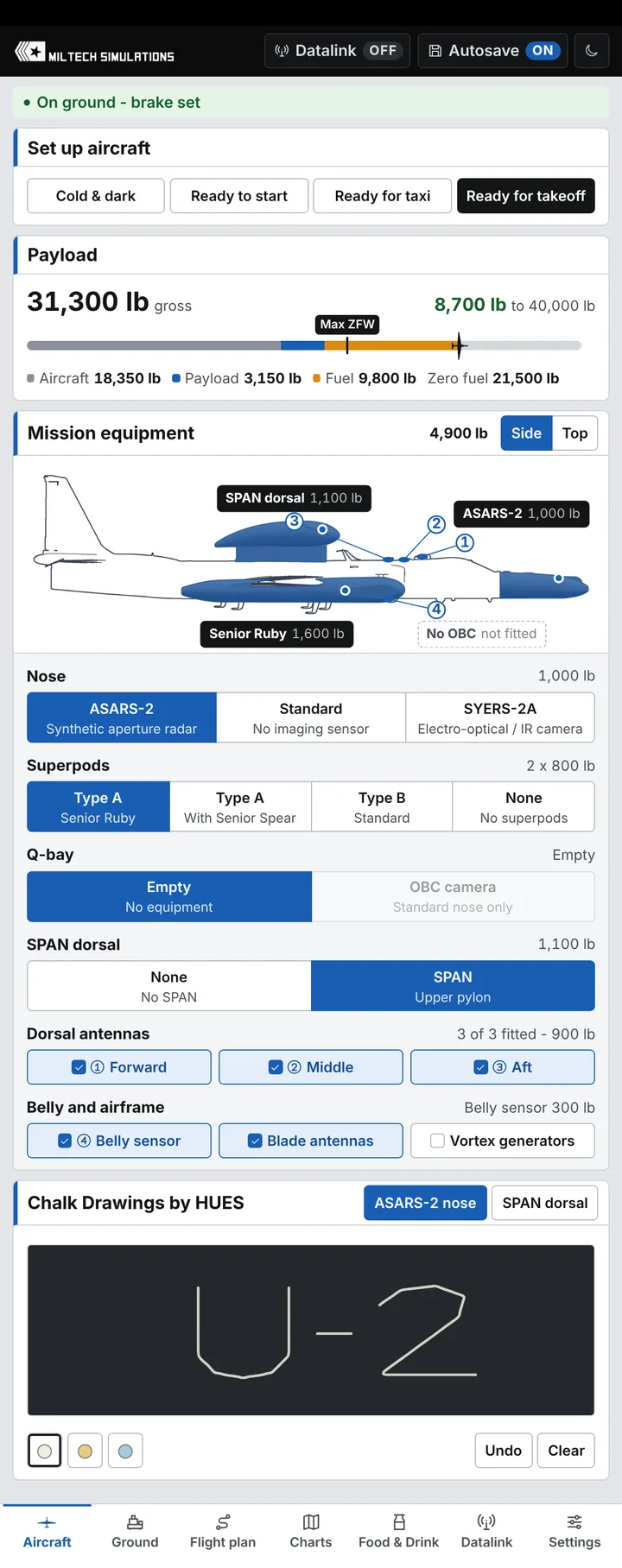
With the ASARS-2 nose or the SPAN dorsal fitted, a Chalk Drawings by HUES card appears at the bottom of the Aircraft tab. Choose ASARS-2 nose or SPAN dorsal to open its drawing pad, pick white, ochre or blue chalk and draw with the mouse: the drawing appears on that part of the aircraft. Undo takes back the last stroke and Clear wipes the pad. Each drawing is kept on this PC.
Ground Tab
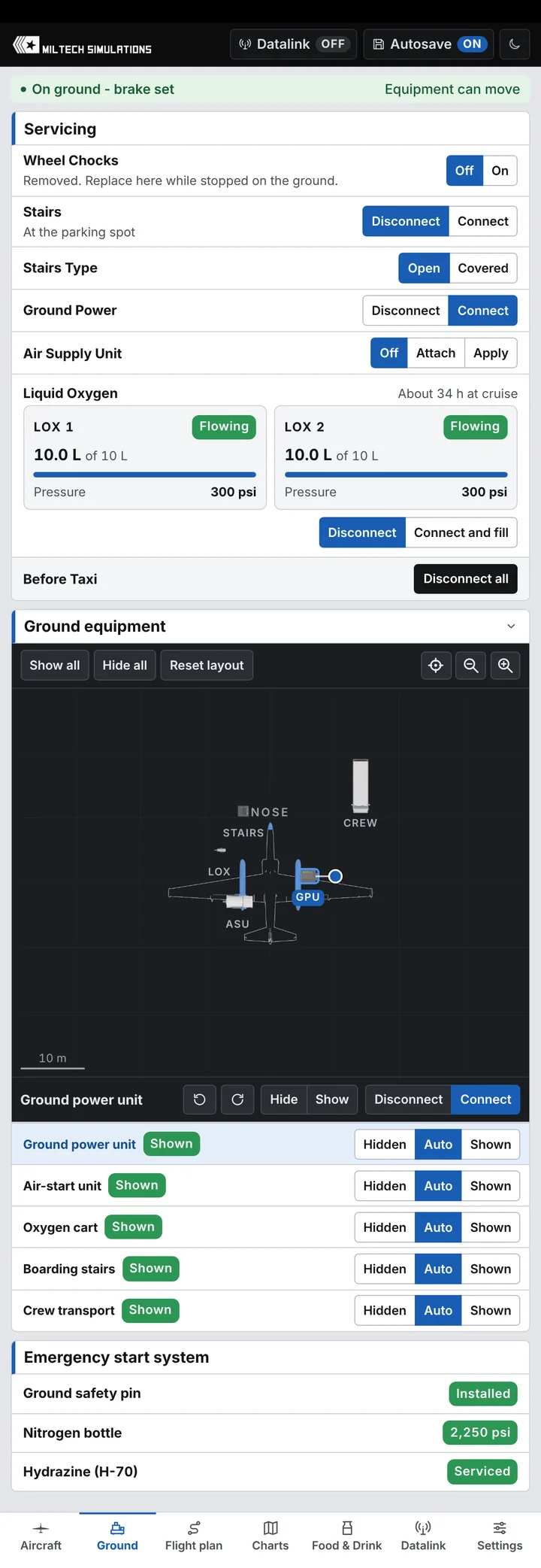
Service the aircraft and arrange the ground equipment on your stand. It works only while you are parked: on the ground, stopped, off the runway, with the parking brake set or the wheel chocks fitted. The line under the map (and the status strip) says what is missing.
Servicing
The services in the order of a departure. Connect or Attach brings a hidden vehicle out by itself, sends it to its service point where the cable or hose goes on; Disconnect sends it back.
| Service | Choices | What it does |
|---|---|---|
| Wheel Chocks | Off · On | Stopped on the ground; the walkaround removes them too. The chocks do not follow the parking brake. |
| Stairs, Stairs Type | Disconnect · Connect, Open · Covered | Connect brings the boarding stairs to the cockpit; Disconnect takes them back to their spot. |
| Ground Power | Disconnect · Connect | Brings the GPU to its service point. Once the cable is on, switch EXTERNAL POWER ON in the cockpit. Disconnecting, or the GPU leaving, switches external power off. |
| Air Supply Unit | Off · Attach · Apply | The starting-air cart. Attach connects the hose; Apply supplies the air, which turns the engine: the only way to start it on the ground (see Engine Start). A press of MIC on the yoke or throttle selects Apply too. The air comes off by itself once the engine runs, and the hose drops if you roll faster than 3 kt. |
| Liquid Oxygen | Disconnect · Connect and fill | LOX 1 and LOX 2 show the quantity (of 10 L), the pressure and Flowing / Off, with the endurance at cruise in the header. With the engine stopped, Connect and fill brings the oxygen cart and fills both converters to 100 %. The hoses stay on until you press Disconnect. |
| Before Taxi | Disconnect all | Disconnects every cart and the stairs and sends them back to their spots; the line beside it says what it is waiting for. Ready for taxi and Ready for takeoff do this first by themselves. |
Ground equipment
A stand map with your aircraft drawn as fitted, nose up, on a 10 m grid. The magnifiers zoom it (30, 50, 80 or 120 m across), dragging the map pans it, and the target button centres it again. Shown vehicles are solid, hidden ones faint at their planned spots. Click a vehicle (on the map or in the list) to select it, and drag it to a new spot within 40 m of its default position, never into the aircraft's clearance. The bar under the map acts on the selected vehicle: turn it 15° at a time, Hide or Show it, and Connect or Disconnect it.
Each vehicle (ground power unit, air-start unit, oxygen cart, boarding stairs, crew transport) is Hidden, Auto (follows the normal ground-service sequence) or Shown; its tag says what it is doing. Show all, Hide all and Reset layout (default positions, all on Auto) act on every vehicle. A connected cart cannot be moved: disconnect it and wait for it to return.
Emergency start system
Read only: the ground safety pin (Installed or Removed; the runway crew pulls it with the pogo pins), the nitrogen bottle pressure (2,250 psi when serviced) and the hydrazine (Serviced, or Used after an airstart). See Engine Start.
Flight Plan Tab
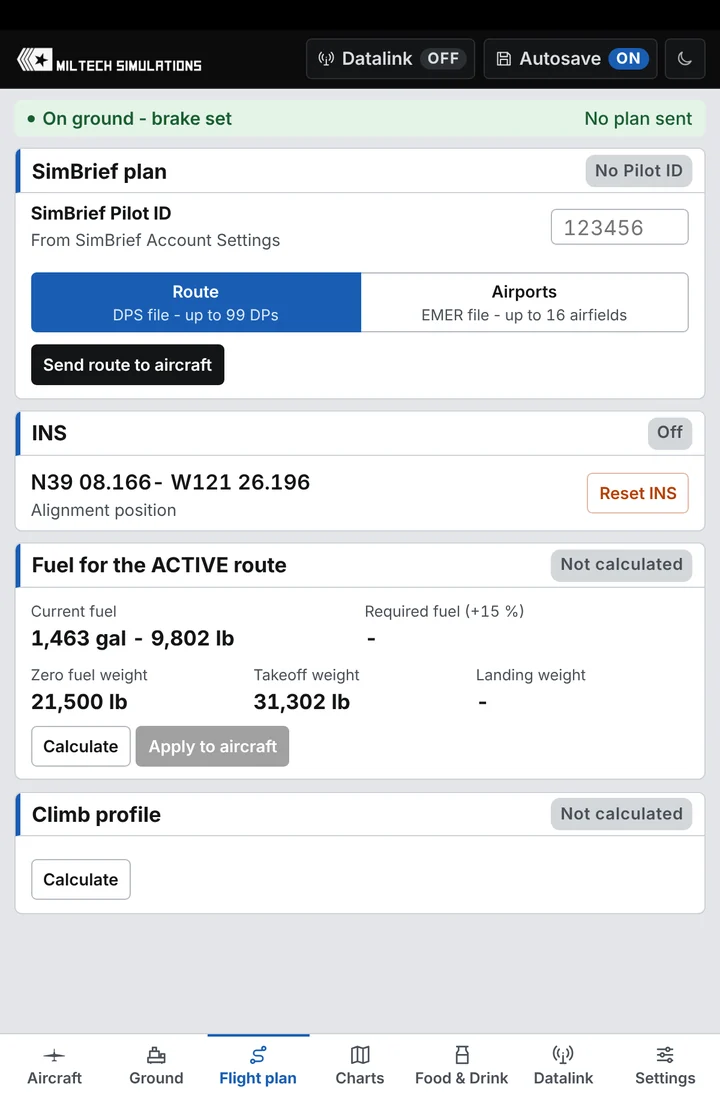
SimBrief plan. Enter your SimBrief Pilot ID once (from your SimBrief account settings); the MFD uses the same ID for MFD STAT → LOAD → SIMBRIEF. Choose Route (DPS file: origin, navlog fixes and destination, up to 99 DPs) or Airports (EMER file: origin, destination and alternates, up to 16), then Send route to aircraft. The EFB plays the ground station: it fetches your latest plan and sends it as an UPLD file, which you accept or reject on the MFD or the BCDU. It needs an internet connection, not the datalink.
INS. Your position in the format the BCDU expects for ALN POS, and the INS state. Reset INS asks first, then puts the INS back in standby so you can align again.
Fuel for the ACTIVE route. Current fuel in gallons and pounds. Calculate flies the ACTIVE DP file in a quick model (the 160 KIAS climb to M .715, then the cruise climb at M .715, with your zero fuel weight and the pods' drag; standard day, no wind, no descent) and gives the required fuel plus 15 %, the zero fuel, takeoff and landing weights and a fuel bar. Apply to aircraft (stopped on the ground) loads it, both sides even. Changing the ACTIVE file or the payload clears the figure.
Climb profile. Calculate draws the climb on the same model: altitude against KIAS, between the stall speed (at the start and end weights) and the limits, MMO .75 and VMO 240 KIAS, with the top of climb, the speed corridor there and the ceilings. With no ACTIVE route it draws the climb at your present weight.
Charts Tab
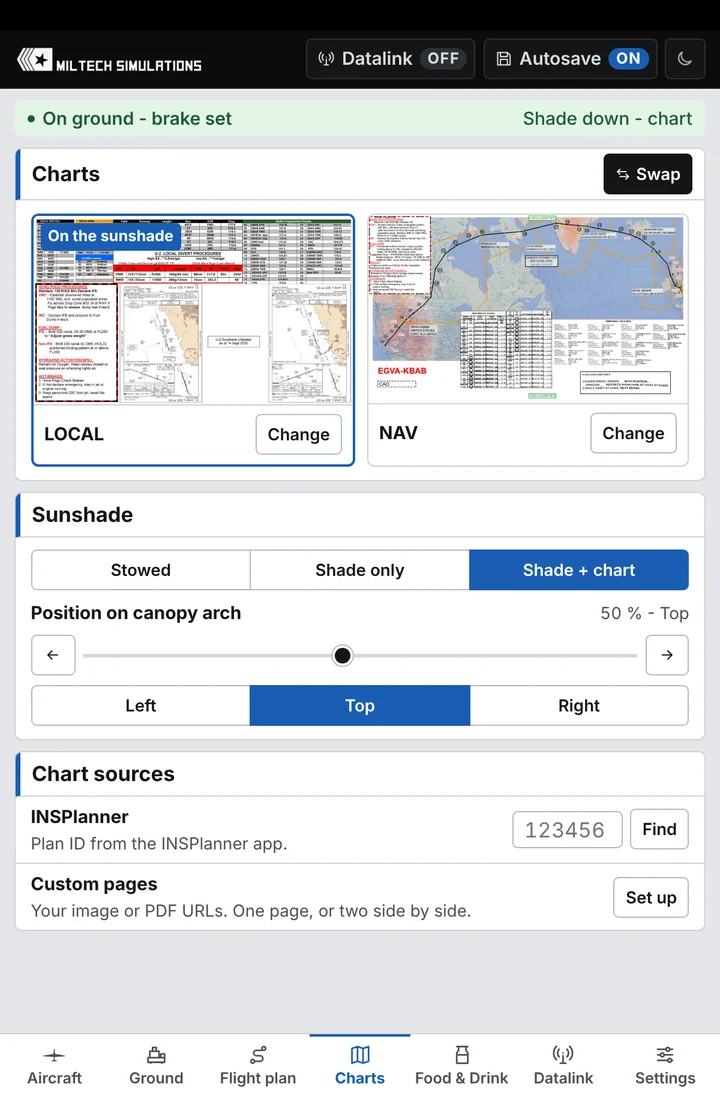
U-2 pilots clip their charts to a sunshade that slides along the canopy arch. Yours works the same way.
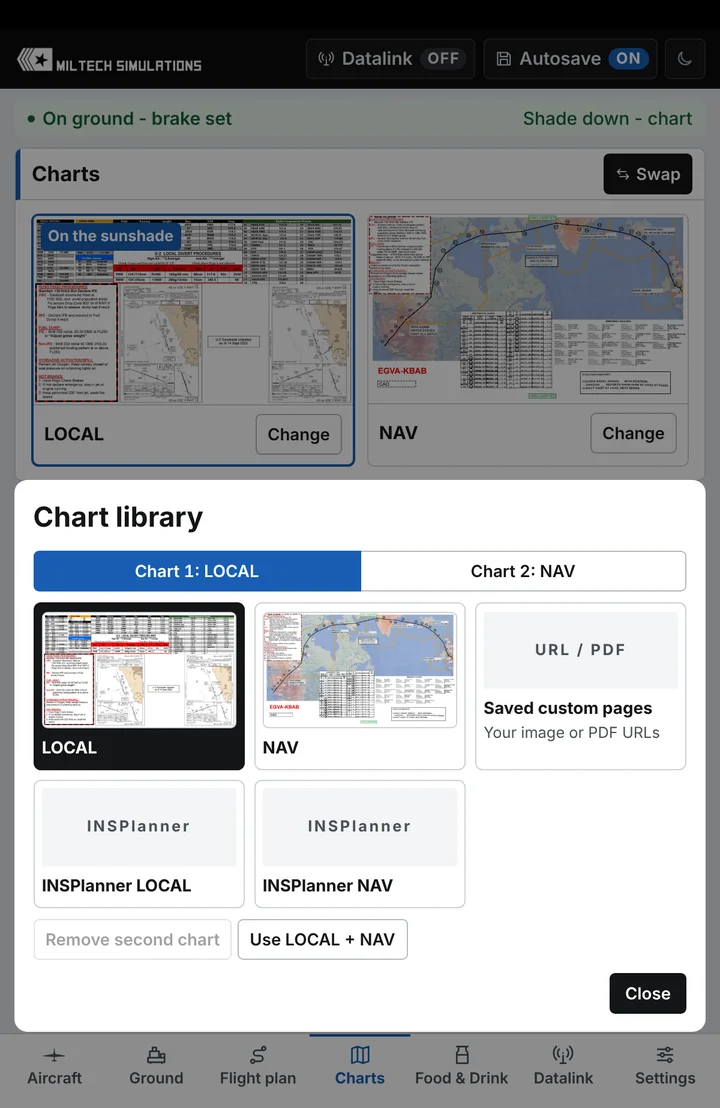
Charts. The two tiles are your two charts (LOCAL and NAV to begin with); the one on the shade is marked On the sunshade. Click a tile to put its chart on the shade, or Swap; in the cockpit the amber pull tab swaps them too. Change opens the chart library for that tile.
Sunshade. Stowed · Shade only · Shade + chart. Position on canopy arch: the slider, the arrows (2 % a click) and Left · Top · Right. In the cockpit you can drag the shade or roll the mouse wheel over it. Every flight starts with the shade down at the top of the arch, showing your last chart.
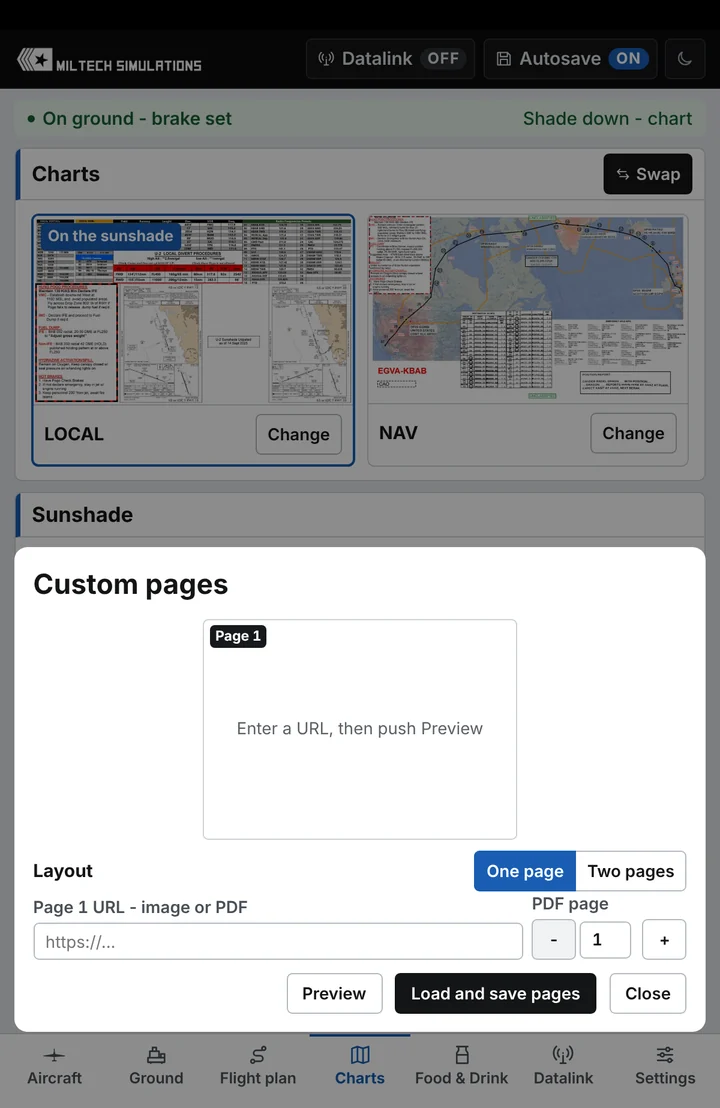
Chart sources. INSPlanner: generate the charts in INSPlanner and choose Send charts to aircraft, then type the same plan ID here and press Find; sheet 1 goes to chart 1 as LOCAL and sheet 2 to chart 2 as NAV. Custom pages (Set up): a direct link to an image or PDF, one page or two side by side, the PDF page, Preview, then Load and save pages. Links must be direct http/https addresses to files that are not password-protected.
Food & Drink Tab
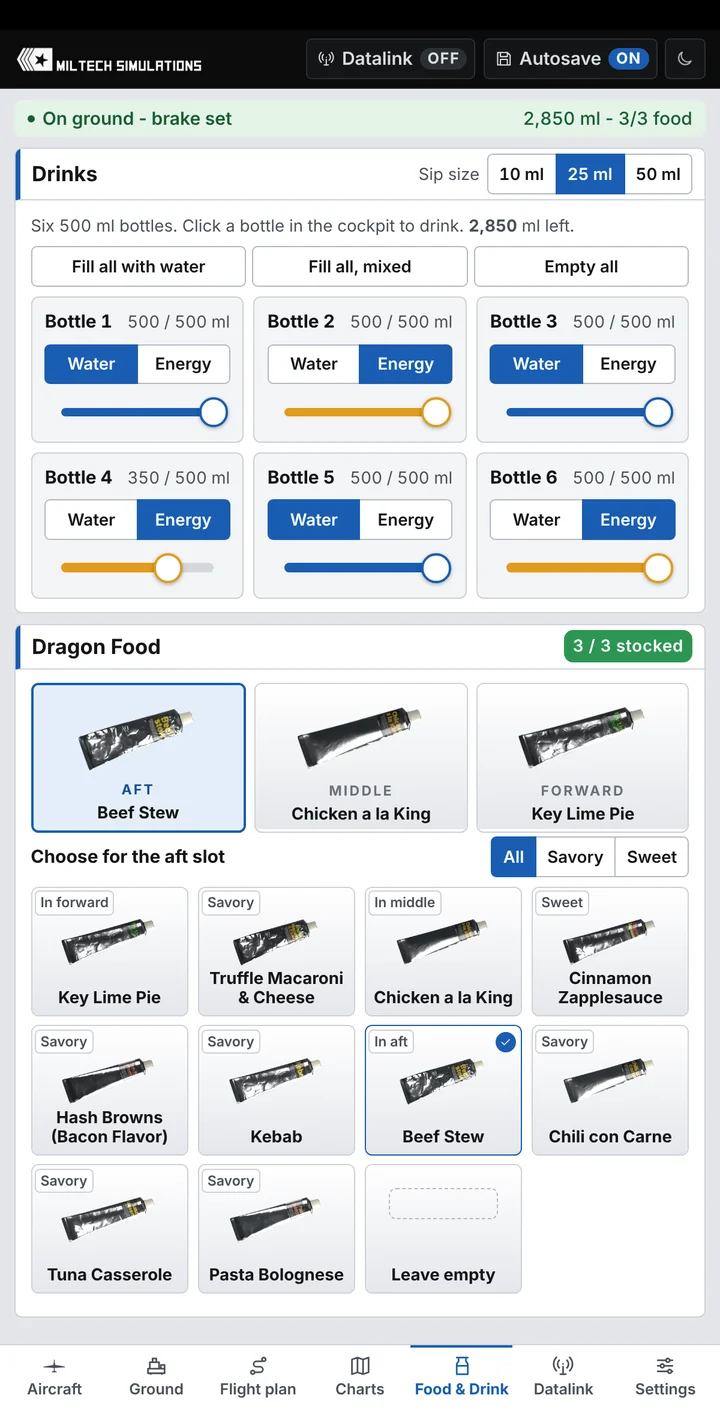
Drinks. Six 500 ml bottles, each Water or Energy. Set a bottle's level with its slider, or use Fill all with water, Fill all, mixed or Empty all; the card shows how much is left in all. The sip size is 10, 25 or 50 ml. Click a bottle in the cockpit to drink.
Dragon Food. Three heater slots (aft, middle, forward) and ten tube flavors. Select a slot, then a tube or Leave empty; All · Savory · Sweet filters the list, and the card header counts the stocked slots. In the cockpit, click a stocked tube to take it out and again to stow it; the FOOD HEATER switch warms a tube and shows FOOD READY about ten minutes after START.
Datalink Tab
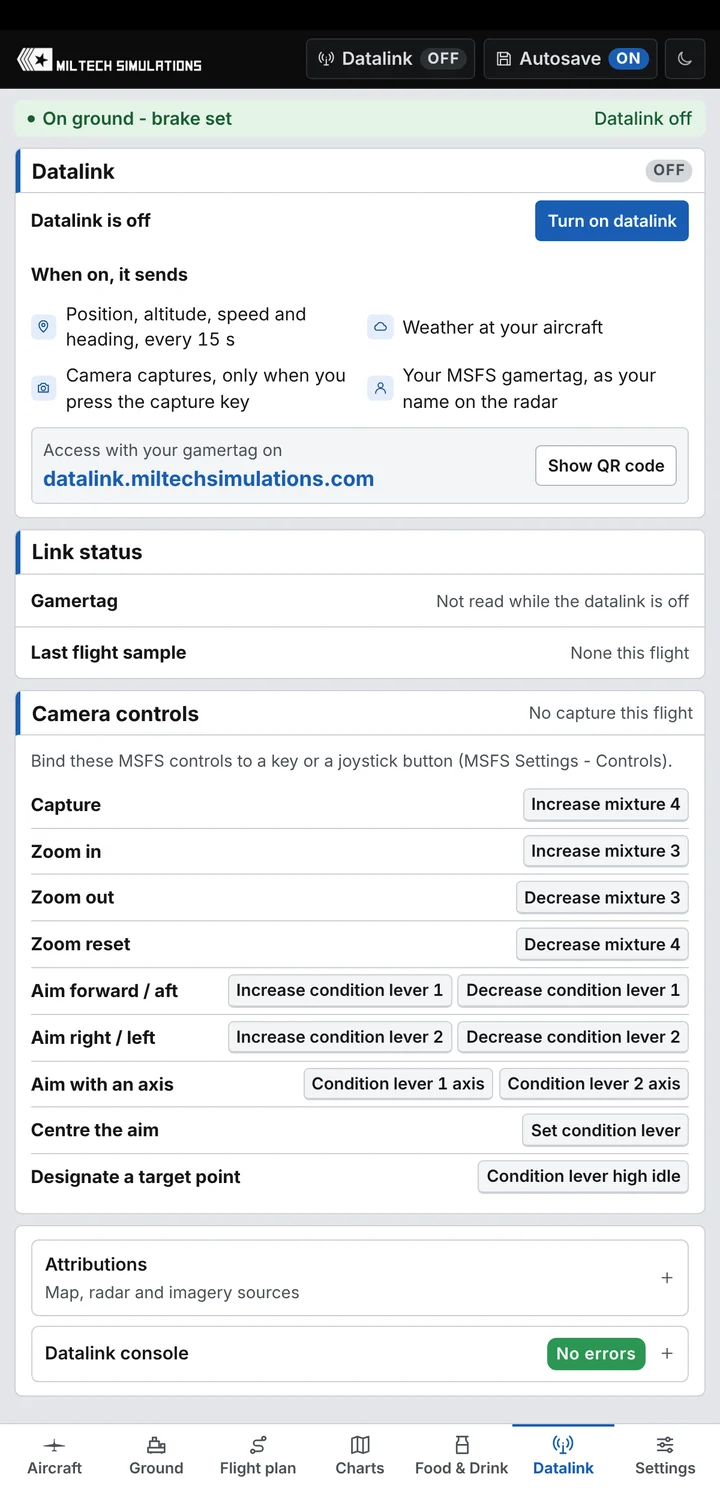
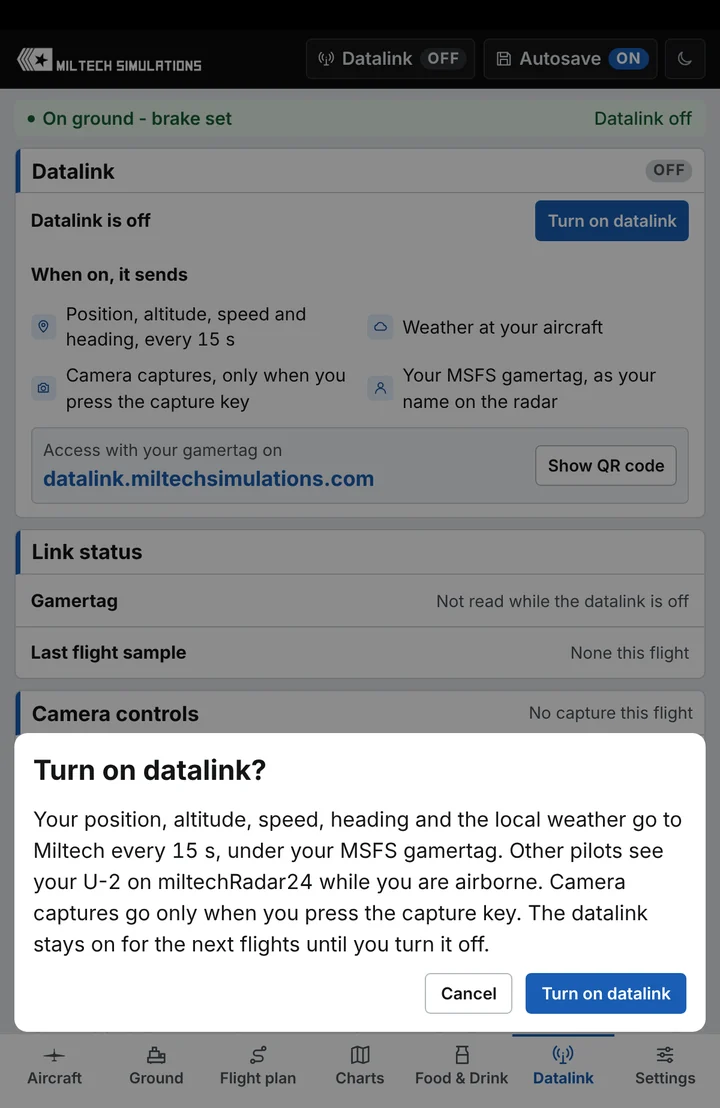
The datalink is off on a first install, and your choice is remembered on this PC. Turn on datalink asks first; Turn off works at once. While it is on, your position, altitude, speed, heading and the local weather go to Miltech every 15 s under your MSFS gamertag, and other pilots see your U-2 on miltechRadar24 while you are airborne. Camera captures go only when you press the capture key; no images are ever uploaded. Switching off stops the uploads at once, and your radar position goes within 90 s.
datalink.miltechsimulations.com is where you see your shared records: sign in with your gamertag. Show QR code puts the address on the tablet for your phone camera. Link status gives your gamertag and the time of the last flight sample.
Camera controls lists the MSFS controls the camera pages listen to; they are all in the Keybinds Guide. With the datalink on and a camera page showing above 1,000 ft AGL, Capture saves the camera position and conditions to your gallery; the card header shows how the last capture went.
Attributions lists the map, radar and imagery sources. The Datalink console shows local error messages from the datalink, the SimBrief uplink and the radar, map and camera pages; it works with the datalink off and nothing in it is uploaded.
Settings Tab
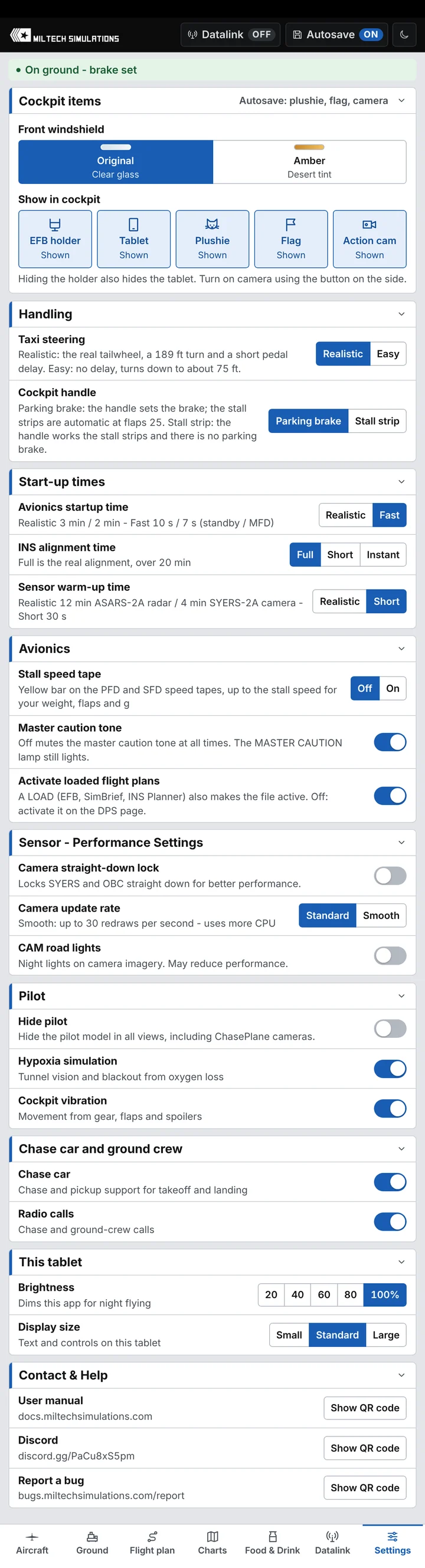
Nine sections; click a heading to fold or unfold it (remembered on this PC). Switches are blue when on.
| Option | Choices | What it does |
|---|---|---|
| Cockpit items | ||
| Front windshield | Original · Amber | Clear glass or a desert-amber tint. |
| Show in cockpit | EFB holder · Tablet · Plushie · Flag · Action cam | Click a tile to show or hide the item. Hiding the holder also hides the tablet. The plushie, flag and action camera are kept with Autosave; turn the action camera on with the button on its side. |
| Handling | ||
| Taxi steering | Realistic · Easy | Realistic: the real tailwheel, a 189 ft turn and a short pedal delay. Easy: no delay, and it turns down to about 75 ft. |
| Cockpit handle | Parking brake · Stall strip | Parking brake: the handle sets the brake, and the stall strips come out by themselves at flaps 25. Stall strip: the handle works the stall strips and there is no parking brake. Change it stopped on the ground. |
| Start-up times | ||
| Avionics startup time | Realistic · Fast | Realistic 3 min / 2 min, Fast 10 s / 7 s (standby display / MFDs). |
| INS alignment time | Full · Short · Instant | Full is the real alignment, over 20 minutes. You still start and accept it. |
| Sensor warm-up time | Realistic · Short | Realistic: 12 min for the ASARS-2 radar, 4 min for the SYERS-2A camera. Short: 30 s. |
| Avionics | ||
| Stall speed tape | Off · On | A yellow bar on the PFD and SFD speed tapes, up to the stall speed for your weight, flaps and g. |
| Master caution tone | On · Off | Off mutes the master caution tone at all times; the MASTER CAUTION lamp still lights. |
| Activate loaded flight plans | On · Off | On: a LOAD (EFB, SimBrief, INS Planner) also makes the file active. Off: activate it on the DPS page. |
| Sensor - Performance Settings | ||
| Camera straight-down lock | Off · On | Locks the SYERS-2A and OBC straight down, for better performance. |
| Camera update rate | Standard · Smooth | Smooth: up to 30 redraws a second, for smoother pointing and zoom. Uses more CPU. |
| CAM road lights | On · Off | Night lights on the camera imagery. On at every flight start; may reduce performance. |
| Pilot | ||
| Hide pilot | Off · On | Hides the pilot model in all views, ChasePlane cameras included. |
| Hypoxia simulation | On · Off | Tunnel vision and blackout from oxygen loss: see Cabin, Oxygen and Hypoxia. |
| Cockpit vibration | On · Off | Movement from the gear, flaps and spoilers. |
| Chase car and ground crew | ||
| Chase car | On · Off | The mobile on takeoff and landing, and the runway crew. Off: nobody pulls the pogo pins on a ground start. See Chase Car and Ground Support Equipment. |
| Radio calls | On · Off | The chase car and ground crew calls. |
| This tablet | ||
| Brightness | 20 · 40 · 60 · 80 · 100 % | Dims this app for night flying, on top of the simulator's own tablet brightness. |
| Display size | Small · Standard · Large | Size of the text and controls on this tablet. |
| Contact & Help | ||
| User manual · Discord · Report a bug | Show QR code | The address of this guide, the Miltech Discord and the bug report page, each with a QR code for your phone camera. |