 DOCUMENTATION
Welcome to the U-2
CONSUMER SIMULATION USE ONLY - DO NOT USE THIS DOCUMENTATION ON A REAL AIRCRAFT
Thank you for purchasing the Miltech U-2S for Microsoft Flight Simulator 2024. This aircraft is the result of more than three years of research and development, drawing on public sources, archive footage and videos, and conversations with subject matter experts who know the real aircraft first-hand. We hope you enjoy flying it as much as we enjoyed building it.
This documentation is designed to help simulation enthusiasts get the most out of the U-2S. Whether you are new to high-altitude flying or a seasoned virtual pilot, this guide will walk you through everything you need to start the aircraft, fly it and, above all, land it with confidence.
Overview
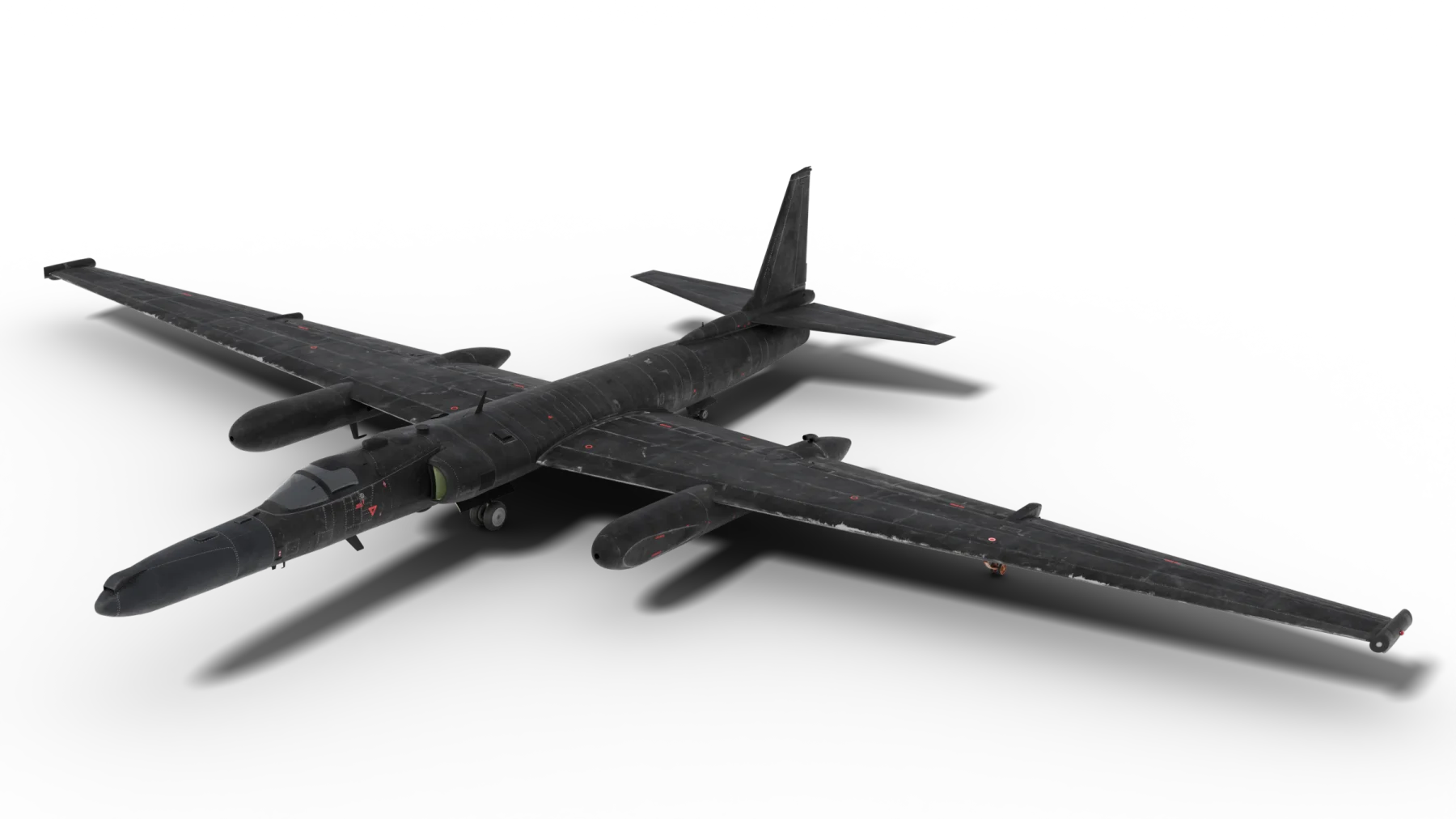
The U-2 "Spyplane" is a single-engine, single-seat, high-altitude reconnaissance aircraft. Its glider-like 103 ft wing lets it cruise above 70,000 ft for many hours - and makes it one of the most demanding aircraft in the world to land. It sits on a bicycle landing gear, balances on detachable "pogo" wheels, and requires a chase car with a second pilot for landing. Our U-2S for Microsoft Flight Simulator 2024 is built from public data records. Some claim the U-2 is the hardest airplane in the world to fly. U2 101 - The Basics explains why, and the short history below shows where the aircraft came from.
A Short History
The U-2 first flew in 1955 from Groom Lake, a remote test site in the Nevada desert. Its job was simple to describe and hard to do: photograph the Soviet Union from an altitude no fighter or missile could reach. That held until 1960, when a U-2 was shot down over Sverdlovsk. Two years later, U-2 photographs revealed the Soviet missile sites in Cuba. NASA later took the aircraft on as a research platform, and in 1994 the fleet was re-engined with the GE F118 turbofan. That is the U-2S the U.S. Air Force still flies today. For the full timeline, and the places you can fly it in the simulator, see Introduction.
Variants and Availability
Buy the U-2 once and you get all three variants. The U-2S is in the box on release day, 13 November 2026. The U-2R and ER-2 follow as a free update a few weeks later, together with 5 to 10 more missions and period chase cars.
Available 13 Nov 2026U-2SDigital cockpitGlass cockpit with three Multi-Function Displays, Up-Front Control Display, Backup Control Display Unit, INS and Standby Flight Display.EngineGE F118Liveries19
Free updateU-2RAnalog cockpitThe classic round-dial cockpit with a drift sight.EngineP&W J75Liveries15
Free updateER-2NASA analog cockpitNASA's high-altitude research aircraft, with the analog cockpit.OperatorNASALiveries3
Sceneries
Four airfields come with the U-2, each with a parking spot made for the U-2 and room for the ground equipment. See Sceneries.
| Airfield | ICAO | Where | U-2 parking |
|---|---|---|---|
| RAF Akrotiri | LCRA | Cyprus | Gate U 2 |
| RAF Fairford | EGVA | Gloucestershire, England | Gate U 2 |
| CIA Nordic Base | CIA1 | Finnish Lapland | Gate U 1 or Gate U 2 |
| Groom Lake | KXTA | Nevada, USA | Any of the 17 ramp spots |
Missions
Seven missions come with the U-2 in the U-2 Spyplane Mission Pack, played in Miltech Mission Hub. New to the U-2? Start with the Familiarization mission. See Missions.
| Mission | Base | Duration |
|---|---|---|
| U-2 Familiarization - Groom Lake Start here | Groom Lake (KXTA) | 1 h 36 min |
| NASA Terrain Study - Groom Lake | Groom Lake (KXTA) | 2 h 8 min |
| NASA Grand Canyon Survey | Palmdale (KPMD) | 2 h 16 min |
| UFO Investigation - Roswell | Groom Lake (KXTA) | 1 h 52 min |
| Operation Dark Skies - North Korea | Osan Air Base (RKSO) | 2 h 24 min |
| Chinese Surveillance Balloon - Observation | Patrick SFB (KCOF) | 2 h 32 min |
| Iran Reconnaissance - Akrotiri | RAF Akrotiri (LCRA) | 2 h 48 min |
This guide covers the U-2S.
Get Started
These four steps get you set up and flying quickly.
- Read the Important Need-to-Knows. The U-2 does several things differently from other aircraft.
- New to the U-2? U2 101 - The Basics explains how it flies and what to expect.
- Bind the necessary keybind controls - see Keybinds Guide.
- Follow the Quick Start Guide. If you prefer, refer to the full Checklists section.
Requirements
- Microsoft Flight Simulator 2024 - latest version available. The package is built for MSFS 2024 only.
- A valid product license.
- Joystick Controller (Recommended) or Xbox controller. Two spare buttons are needed for the speedbrakes and the lift spoilers.
- CPU: Quad-core processor or better.
- GPU: At least 8GB of dedicated memory, Nvidia 2070 or better. For graphics cards with less video memory, see Low VRAM Version.
- RAM: 8GB Minimum.
- Hard Disk: At least 8GB Recommended.
- An internet connection is optional. Without it the aircraft flies normally; only the camera and radar pages, custom chart pages, SimBrief loading and the EFB datalink need it.
How to read this documentation
| You see | It means |
|---|---|
| BATTERY, ARM | A switch, knob or switch position in the cockpit |
| ENT L4 | A key you press on a display or keypad |
| FUEL XFER ON FUEL SUMP LOW | Text exactly as it appears on a cockpit screen, in its color |
| FUEL SUMP | A lamp on the warning panel |
| INOP | The control or page is present in the cockpit but has no function in the simulator |
Installation and Updates
How to install the U-2 on your PC, find it in the simulator, update it and remove it.
Where to Buy?
You can buy the Miltech Simulations U-2 from the iniBuilds store, from the Miltech Simulations Webstore, or in the MS Marketplace. Each option is set out below.
Installation - iniBuilds
Products bought from the iniBuilds store are downloaded and updated via iniManager. Download iniManager from inibuilds.com.
- Download and launch iniManager.
- Log in with your iniBuilds account.
- Select the Miltech Simulations U-2 in your products and click "Install". The product will download and install automatically.
Installation - Miltech Simulations Webstore
Products distributed via Miltechsimulations.com are downloaded and updated via Contrail. Download the Contrail App here: https://cdn-eu.29palms.de/contrail/releases/ContrailSetup.exe
- Download and launch Contrail.
- Click on "Accounts" in the bottom left corner and "Connect" your Miltech Simulations account (log in with your Miltech Simulations credentials).
- Click on "Downloads". Your products will download and install automatically.
Installation - MS Marketplace
- Launch Microsoft Flight Simulator.
- Open the Marketplace.
- Search for the Miltech Simulations U-2.
- Click "Install" and wait for the product to install successfully.
After installing, activate your license: see Activating the Aircraft. An internet connection is required for the first activation.
Uninstall
Delete the miltech-u2 folder from the Community folder (or remove it in the MS Marketplace, Contrail or iniManager).
Report Manual Errors
If a page in this manual is wrong or unclear, send a report through the bug report form. Name the page and the sentence that needs changing.
Report Aircraft Bugs
If the aircraft does not work as this manual says, send a report through the bug report form. Include the aircraft variant, the product version and how you started the flight. See Contact Us.
How This Manual Is Organized
The manual has four parts. Read the Product Guides first. Use the other parts when you need them.
An abbreviation with a dotted underline, such as INS, links to its entry in the Glossary. Each page ends with a Related pages line.